
Update Theme and Plugins
Update Theme
Keeping Brandberry up to date is essential for performance, security, and compatibility with the latest WordPress versions. This section explains how to update the theme safely and correctly.
There are two available update methods:
- Automatic Update (recommended)
- Manual Update
Automatic Update Method
The easiest way to update Brandberry is by using the built-in WordPress update system. This method requires that your theme license is activated.
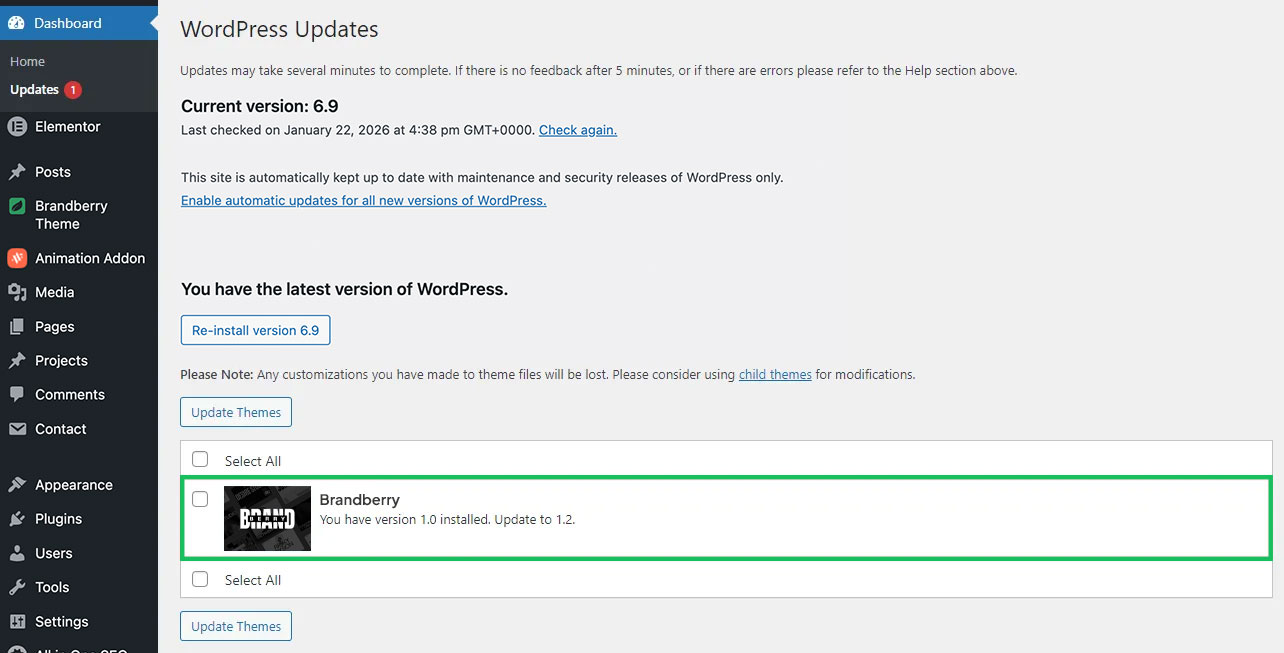
Steps to Update Automatically
- Make sure the Brandberry theme is activated and licensed.
- Go to Dashboard → Updates in your WordPress admin panel.
- Under the Themes section, look for a Brandberry update notification.
- If no update is shown, click Check Again to refresh the list.
- Select the checkbox next to Brandberry and click Update Themes.
- Wait for the update process to complete.
Once finished, a success message will confirm that the theme has been updated.
Manual Update Methods
If you prefer, you can update Brandberry manually by uploading the new theme files.
Before proceeding, download the latest version of the theme from your ThemeForest account.
Manual updates can be performed using one of the following methods:
- Via WordPress Dashboard
- Via FTP
Manual Update via WordPress Dashboard
- Download the latest version of Brandberry from ThemeForest.
- Go to Appearance → Themes → Add New.
- Click Upload Theme.
- Select the
brandberry.zipfile and click Install Now. - Confirm the replacement when prompted.
After the update, make sure all required and recommended plugins are also up to date.
Manual Update via FTP
- Download the latest version of Brandberry from ThemeForest.
- Connect to your server using an FTP client (such as FileZilla or similar).
- Navigate to
wp-content/themes/. - Delete the existing
brandberrytheme folder. - Upload the new
brandberryfolder extracted from the latest theme package.
Once uploaded, return to your WordPress dashboard and verify that the theme is working correctly. Update any required plugins if prompted.
Errors & Troubleshooting
If you encounter an error message or a blank (white) screen during the update process, do not panic. These issues are usually related to server limits or file permissions and can be resolved easily.
In such cases, we recommend checking your PHP configuration limits or contacting your hosting provider for assistance.
Tip: Always keep your theme and plugins up to date to benefit from the latest features, improvements, and security fixes.
Updating Plugins
Keeping your plugins up to date is important to ensure compatibility, security, and the best performance when using Brandberry. Most plugins included with the theme can be updated directly through WordPress using the default update system.
The majority of required and recommended plugins for Brandberry are updated automatically or through the standard WordPress update mechanism.
- Go to Dashboard → Updates in your WordPress admin area.
- Check the Plugins section for available updates.
- Select the plugins you want to update.
- Click Update Plugins and wait for the process to complete.
Once updated, a confirmation message will appear indicating that the plugins were successfully updated.
Updating Animation Addons PRO
The Animation Addons PRO plugin is updated separately from the default WordPress plugin update system. When a new version is available (usually released alongside a theme update), a notification will appear at the top of your WordPress dashboard.

To update Animation Addons PRO:
- Log in to your WordPress admin dashboard.
- Look for the update notice displayed at the top of the screen.
- Click the Update Plugin button in the notice.
- Wait for the update process to finish.
After the update is completed, the notice will disappear and the plugin will be updated to the latest version.
