
Contact forms
Brandberry uses the popular Contact Form 7 plugin to manage and process contact forms. Contact Form 7 is a reliable and widely supported solution for creating simple and flexible forms in WordPress.
Creating a Contact Form
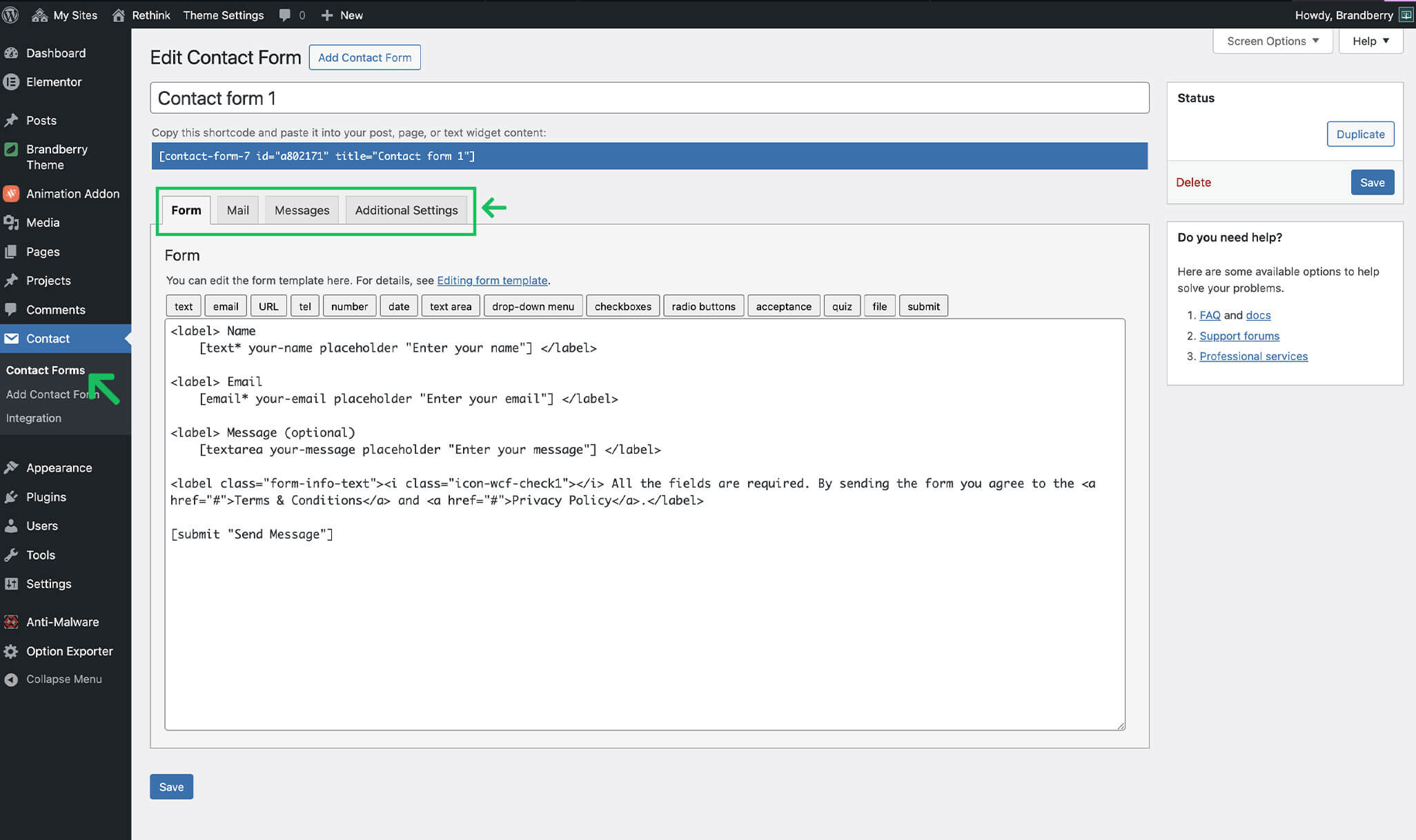
To create or edit a contact form:
- Go to Contact → Contact Forms in your WordPress dashboard.
- Create a new form or edit an existing one.
- Configure form fields, email notifications, and validation.
- Save the form.
Each Contact Form 7 form generates a shortcode that can be used inside Elementor with the widget Contact Form 7
Using Contact Forms in Elementor
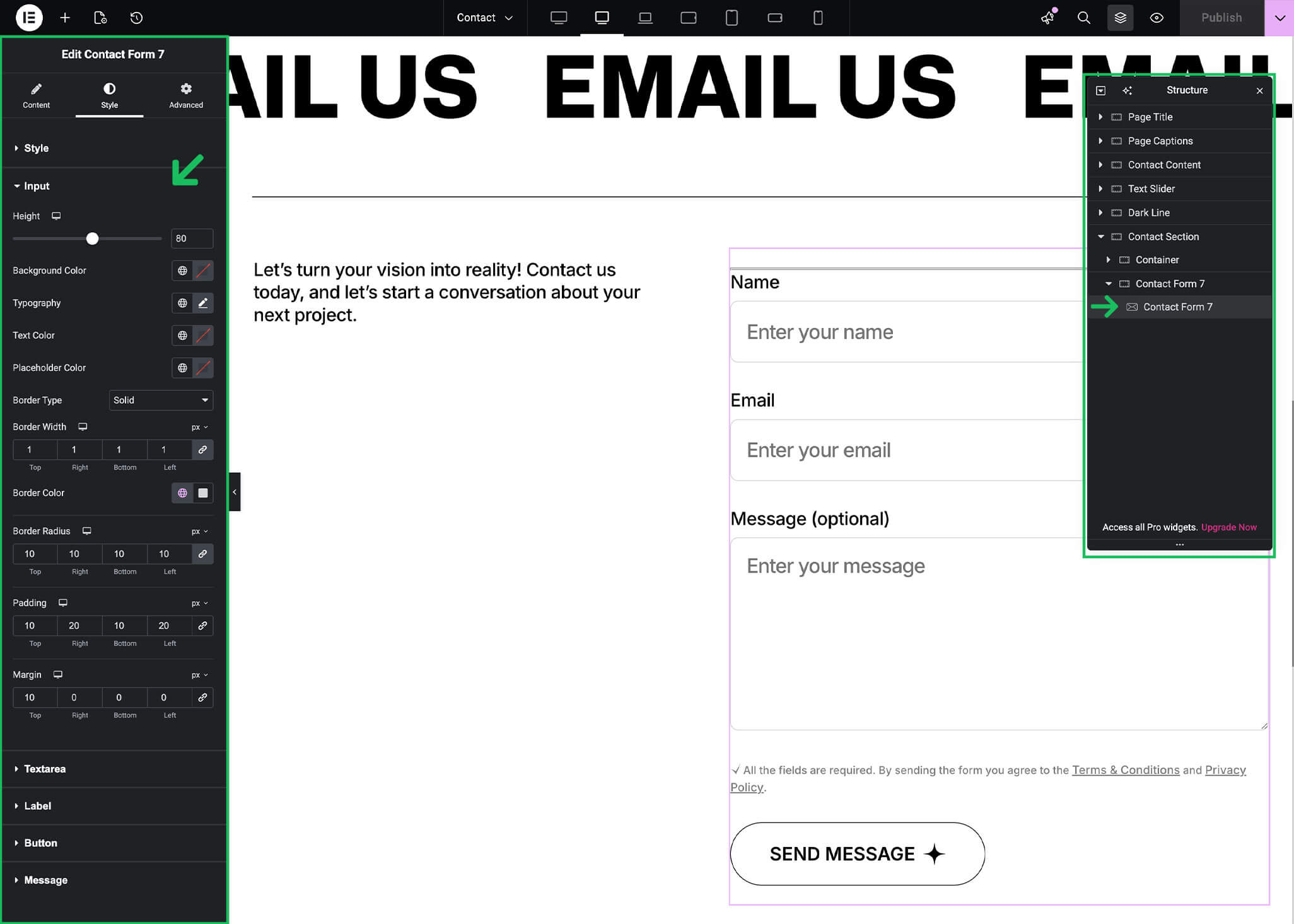
Brandberry includes a dedicated Contact Form widget for Elementor that allows you to insert and style Contact Form 7 forms visually. To add a contact form to a page:
- Edit the page with Elementor.
- Drag the Contact Form widget into your layout.
- Select the desired Contact Form 7 form from the widget settings.
Styling Options
The Contact Form widget provides a wide range of styling controls, allowing you to customize the form appearance without writing CSS. You can style the following elements:
- Input Fields
Control height, background color, typography, text color, placeholder color, borders, border radius, padding, and margin. - Textarea
Customize the message field appearance separately from other inputs. - Labels
Adjust label typography, spacing, and color. - Button
Style the submit button including typography, colors, border radius, hover effects, and spacing. - Messages
Customize success and error messages displayed after form submission.
Responsive Design
All Contact Form widget styles fully support Elementor’s responsive controls. You can adjust spacing, font sizes, and layout for desktop, tablet, and mobile devices.
Best Practices
- Keep forms simple to improve completion rates
- Always test form submission after changes
- Check email delivery settings in Contact Form 7
- Use clear labels and placeholder text
Contact Form 7 Documentation
For advanced form configuration, validation, and email settings, please refer to the official Contact Form 7 documentation: Contact Form 7 – Official Documentation
Troubleshooting
Form Is Not Sending Emails
If your contact form submits successfully but no emails are received, this is usually related to server email configuration rather than the theme itself.
Here are the most common steps to check:
- Check Contact Form 7 Mail Settings
Go to Contact → Contact Forms, edit your form, and review the Mail tab. Make sure the recipient email address is correct and uses a valid email format. - Use a Valid “From” Email Address
The “From” email should use an address from the same domain as your website (for example:noreply@yourdomain.com). Using Gmail or Yahoo addresses may cause emails to be blocked. - Check Spam Folder
Sometimes form emails are delivered but end up in the spam folder. Always check spam before troubleshooting further. - SMTP Configuration
Many hosting providers block the default PHP mail function. We strongly recommend using an SMTP plugin to ensure reliable email delivery.
Recommended SMTP Plugins
Using an SMTP plugin greatly improves email delivery reliability. Popular options include:
- WP Mail SMTP
- FluentSMTP
- Post SMTP Mailer
After configuring SMTP, test your contact form again to confirm emails are delivered correctly.
Form Displays but Does Not Submit
If the form appears on the page but does not submit:
- Check for JavaScript errors in the browser console
- Temporarily disable other plugins to check for conflicts
- Ensure Contact Form 7 is updated to the latest version
Note Brandberry provides styling and layout support for Contact Form 7, but form processing and email delivery are handled entirely by the plugin and your hosting environment.
