
Elementor Page Builder
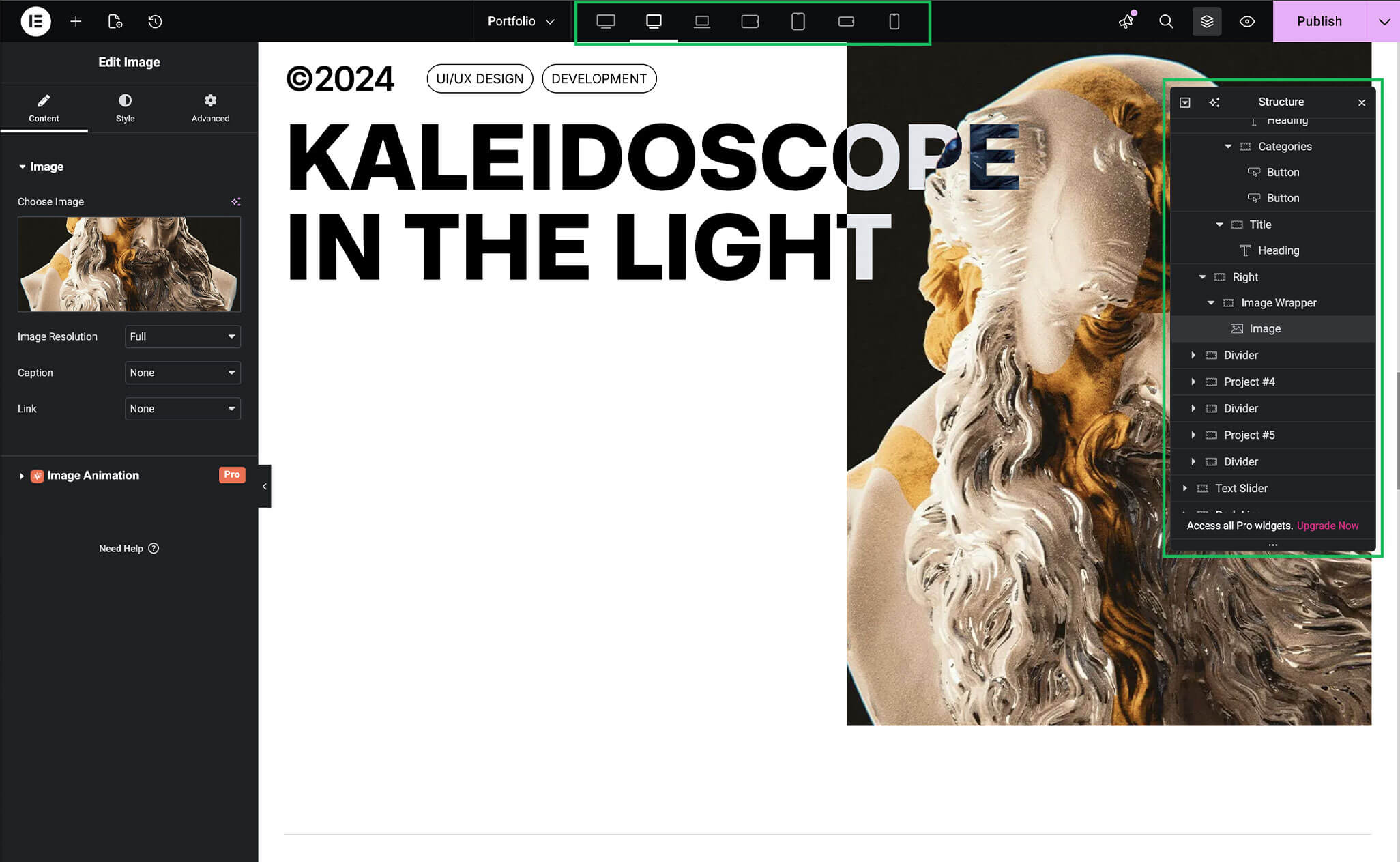
Brandberry is built around Elementor, a powerful drag-and-drop page builder that allows you to create and customize pages visually without coding. Most page layouts, sections, and content elements in Brandberry are created using Elementor.
Getting Started with Elementor
You can edit any page with Elementor by navigating to Pages → All Pages and clicking Edit with Elementor.
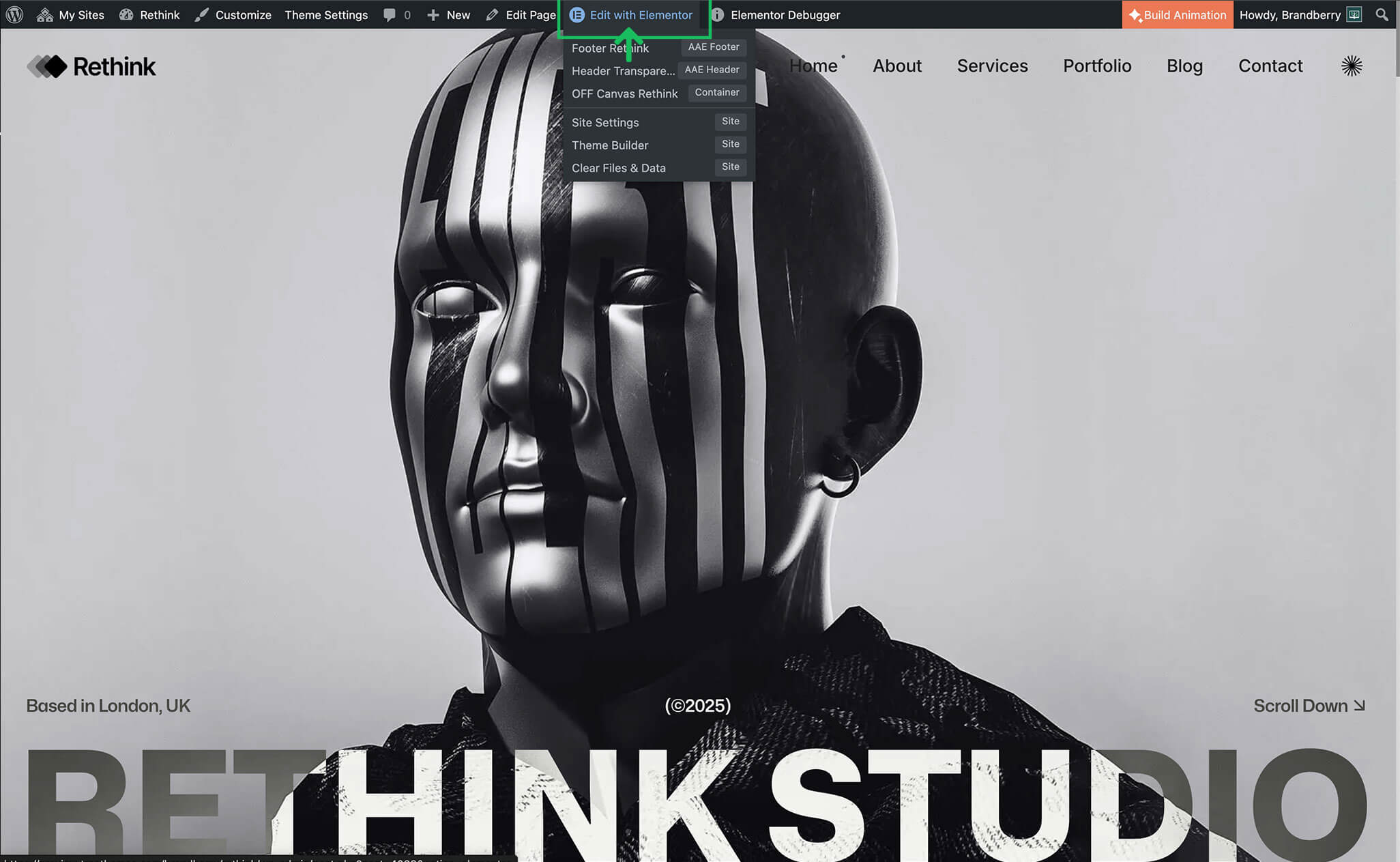
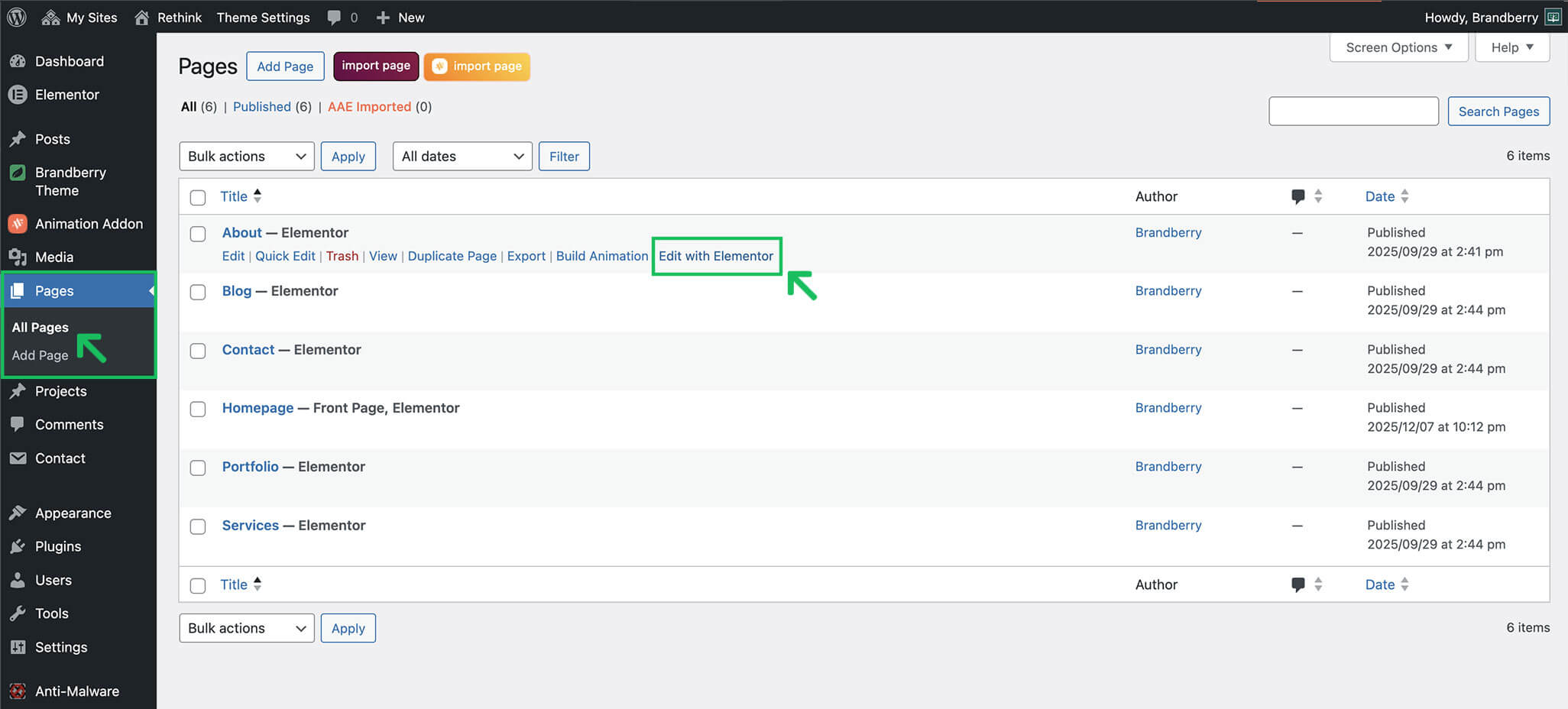
Elementor works using sections, columns, and widgets. You can drag widgets from the left panel and drop them into your layout. For new users, we recommend starting with imported demo pages and editing them to understand how layouts are structured.
Create a Page with Elementor
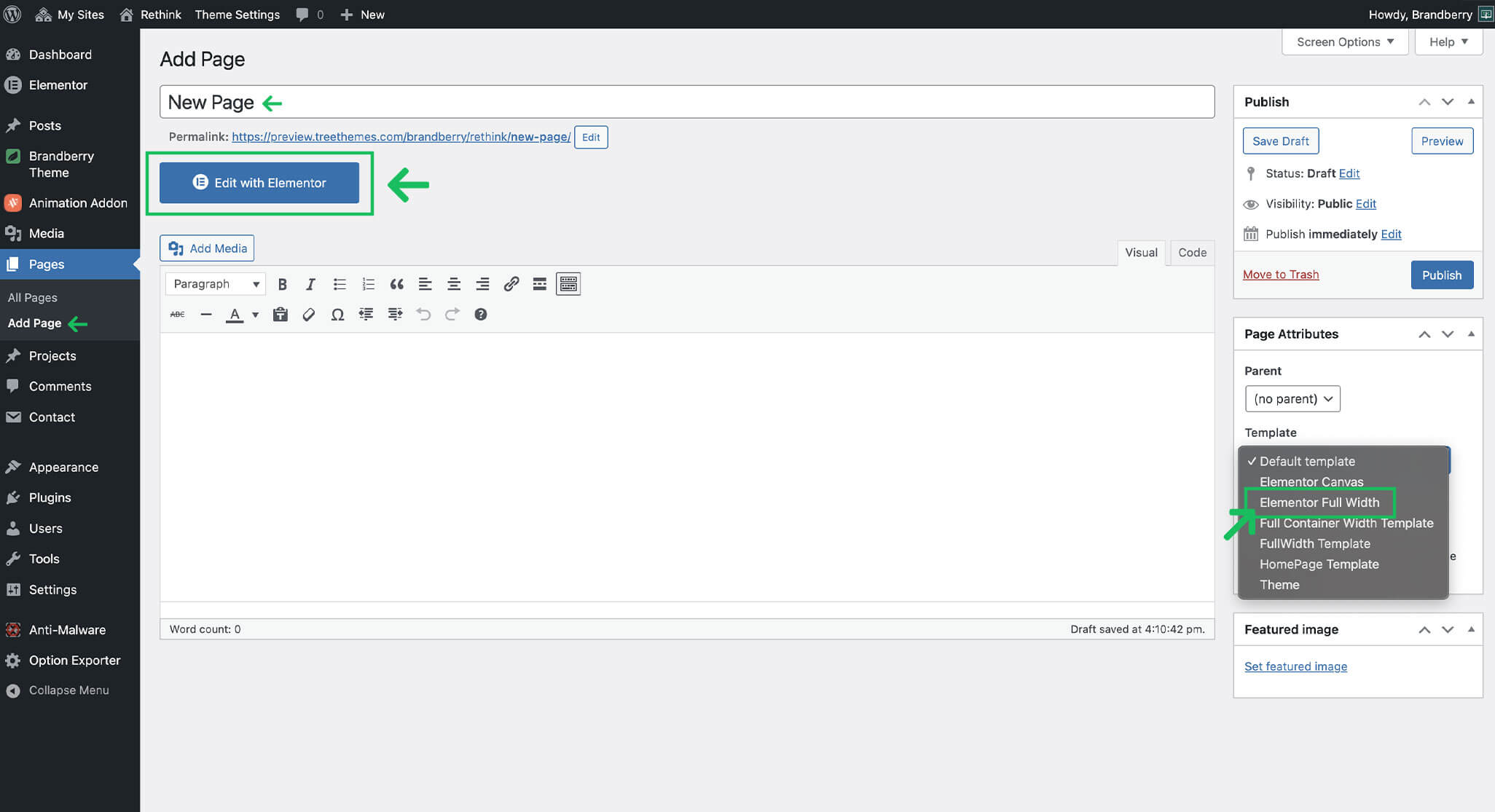
Brandberry is designed to work seamlessly with Elementor, allowing you to build pages visually using a drag-and-drop interface. For the best layout control, we recommend using the Elementor Full Width page template.
To create a new page in WordPress:
- Go to Pages → Add New.
- Enter a title for your page.
- Click Edit with Elementor.
Using the Full Width Template
Elementor provides a Full Width page layout option that allows Elementor to control the entire page layout without restrictions from the theme.
We recommend using the Full Width layout for all pages built with Elementor, as it gives you full control over spacing, sections, and containers.
- While editing the page with Elementor, click the Page Settings icon.
- Set Page Layout or Template to Elementor Full Width.
- Save or update the page.
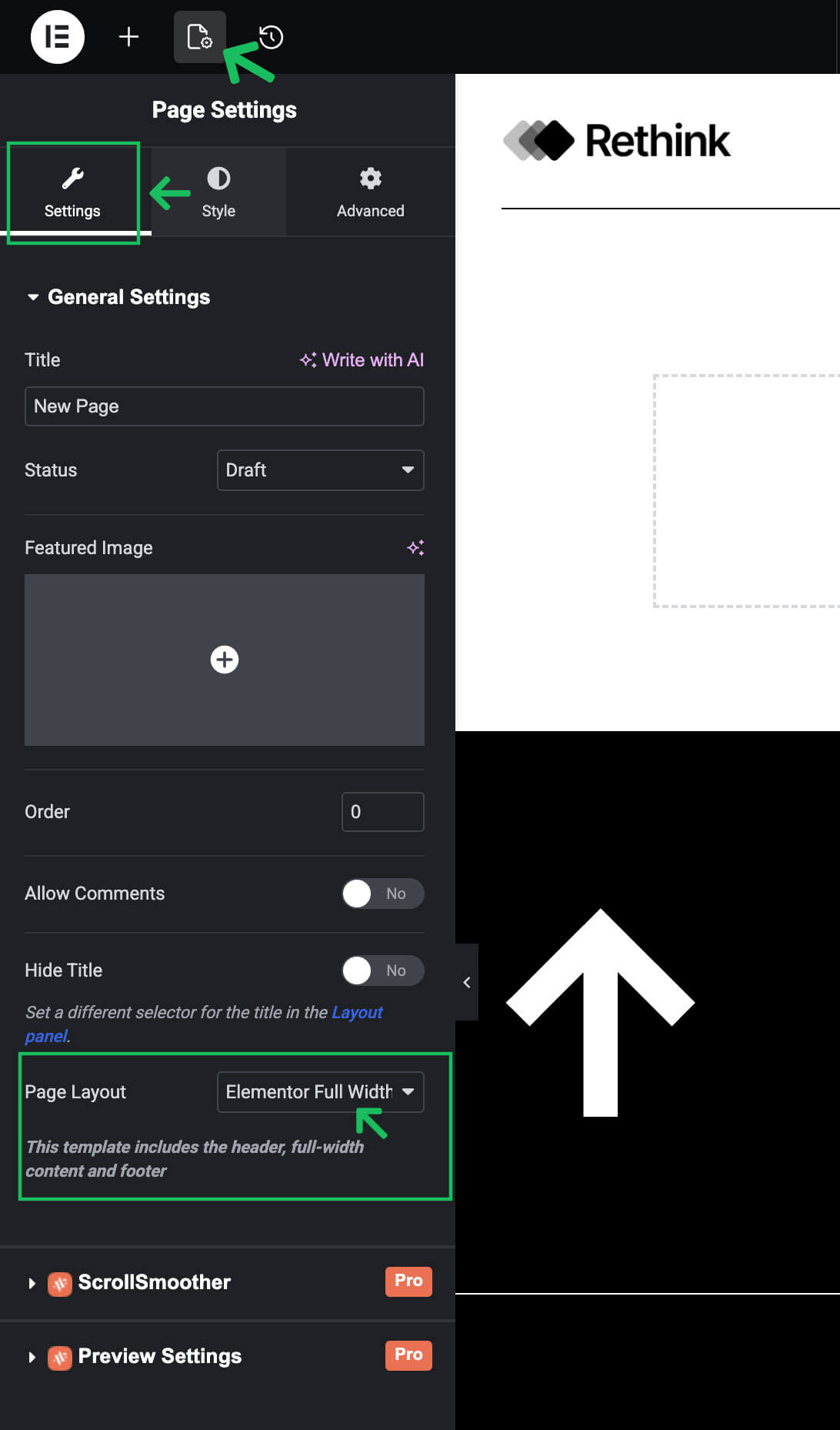
Using the Full Width template ensures that sections, containers, and widgets span the full browser width when needed.
Brandberry & Animation Addons Elementor Widgets
Brandberry includes a collection of custom Elementor widgets designed specifically to work with the theme’s layout system and design language. In addition to Brandberry widgets, the theme includes the Animation Addons plugin, which adds 100+ advanced Elementor widgets. These widgets allow you to create interactive, animated, and highly engaging layouts.
These widgets allow you to create advanced layouts such as:
- Hero sections
- Content grids and lists
- Custom buttons and call-to-action blocks
- Dynamic content sections
- Headers and footers
- Add scroll-based and entrance animations
- Create animated sliders and carousels
- Build interactive content blocks
- Enhance user experience with motion effects
All Animation Addons widgets are fully compatible with Elementor and Brandberry layouts.
Responsive Design
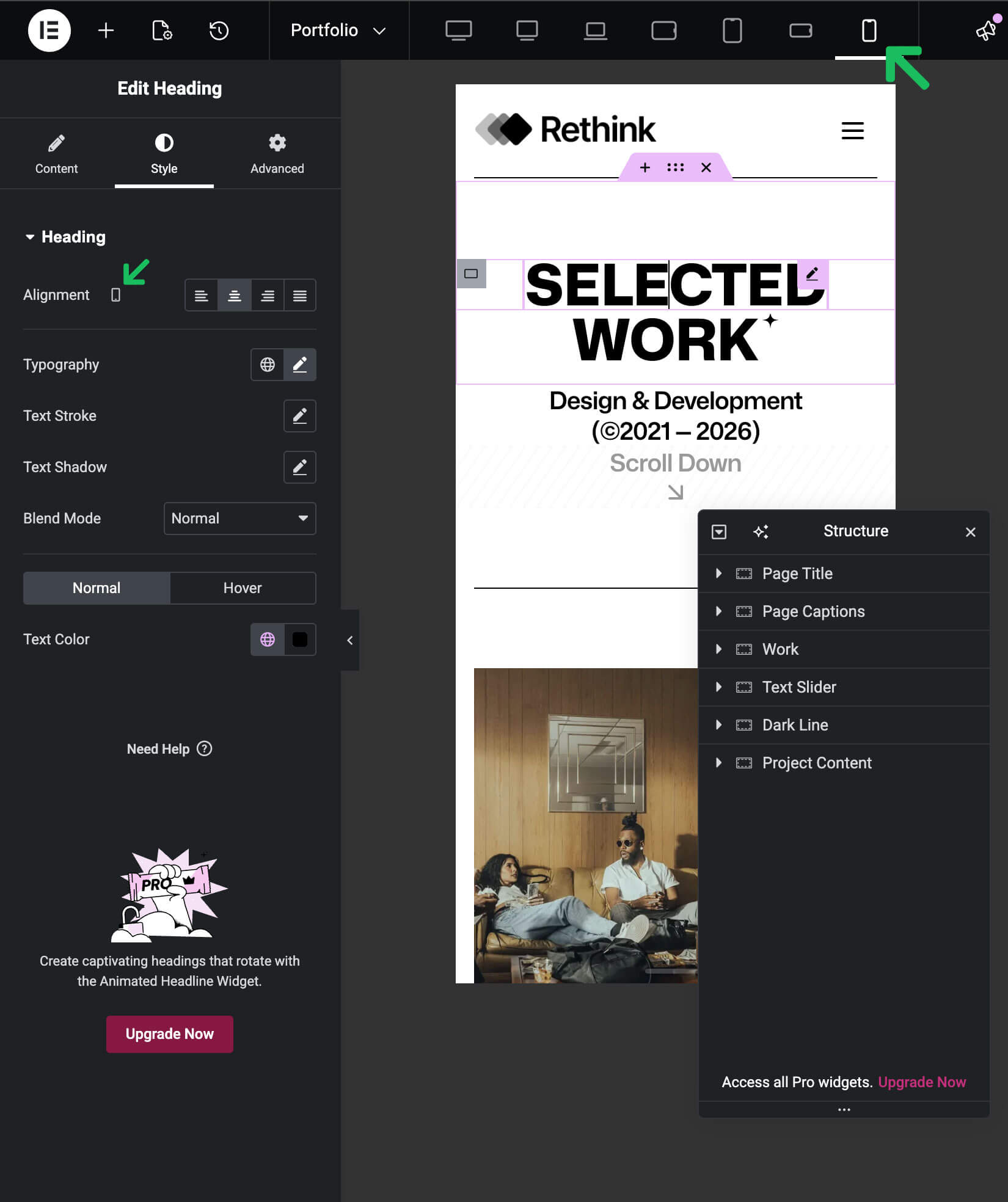
Elementor allows you to control how your content looks on desktop, tablet, and mobile devices. Brandberry fully supports Elementor’s responsive controls.
We recommend checking all breakpoints and adjusting spacing, font sizes, and visibility settings for the best mobile experience. Here is the official Elementor Responsive documentation.
Best Practices
- Use global styles from Elementor Site Settings whenever possible
- Avoid adding excessive animations to maintain performance
- Reuse templates and sections to keep layouts consistent
- Save backups before making major layout changes
Note Elementor itself is a third-party plugin. For detailed Elementor-specific documentation and tutorials, please refer to the official Elementor documentation.
Elementor Documentation & Resources
Elementor is a third-party page builder with extensive documentation and tutorials. If you are new to Elementor or want to explore advanced features, we recommend reviewing the official Elementor resources below:
- Elementor Help Center
- Elementor Academy (Video Tutorials)
- Getting Started with Elementor
- Responsive Design in Elementor
These resources cover everything from basic page editing to advanced layout, responsive controls, and performance optimization.
Note Brandberry fully supports Elementor and extends it with custom widgets and Animation Addons. However, Elementor core functionality is maintained and documented by the Elementor team.
