
Setup RTL
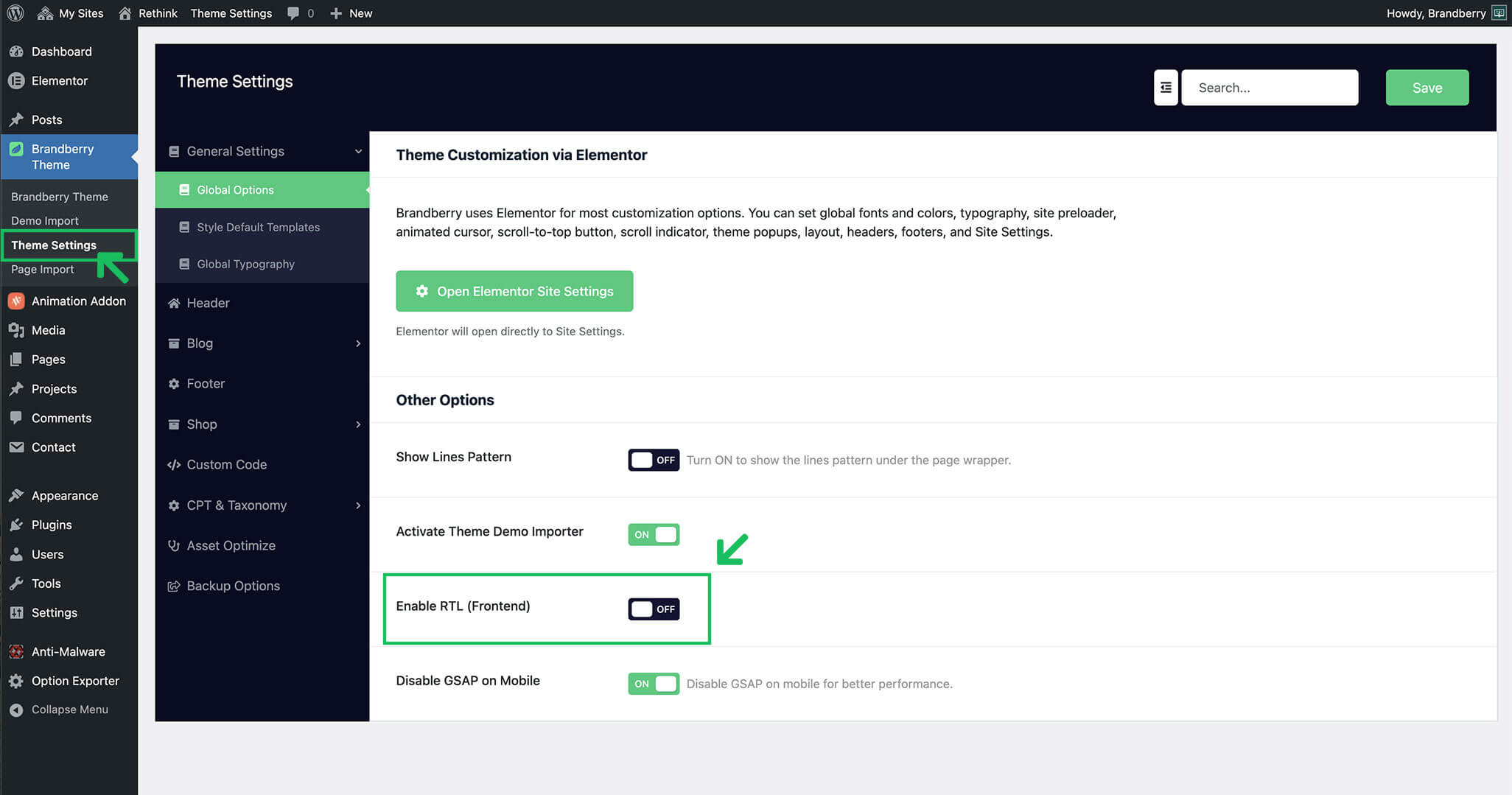
Brandberry includes built-in support for RTL (Right-to-Left) languages, such as Arabic, Hebrew, and Persian. RTL mode automatically adjusts layout direction, alignment, and typography to ensure your website displays correctly for right-to-left reading.
Enabling RTL Mode
You can enable RTL support directly from the theme settings:
- Go to Brandberry Theme → Theme Settings.
- Open the RTL section.
- Enable the RTL option.
- Save your changes.
Once enabled, the website layout will switch to right-to-left direction automatically.
Using RTL with Elementor
Brandberry’s RTL mode is fully compatible with Elementor. You can continue building pages, headers, and templates as usual.
Elementor’s responsive and alignment controls remain available, allowing you to fine-tune spacing and layout for RTL layouts when needed.
RTL & Multilingual Websites
RTL mode works well in combination with multilingual plugins such as WPML or Polylang.
When creating multilingual websites, RTL can be enabled specifically for right-to-left languages to ensure proper display for each language.
Best Practices
- Always test your site after enabling RTL mode
- Check headers, menus, and buttons for proper alignment
- Review custom CSS or Elementor custom positioning
- Preview your site on mobile and tablet devices
Note If you have added custom CSS or custom layouts, minor adjustments may be required to ensure perfect RTL alignment.
