
Elementor Site Settings
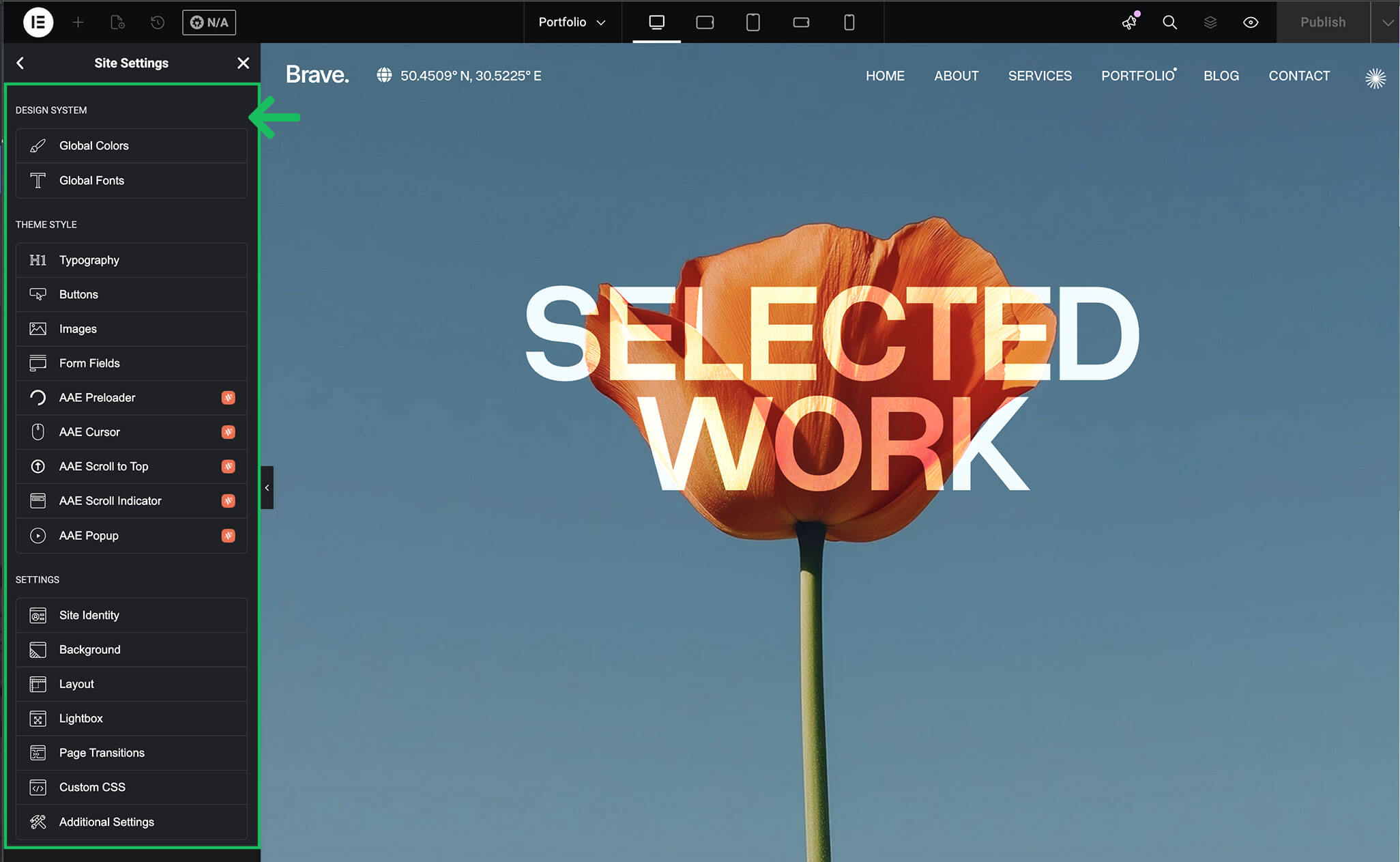
Brandberry uses Elementor as the primary customization engine. Most global styling and theme-related options are managed through Elementor Site Settings, providing a centralized and visual way to control your website’s appearance.
Accessing Elementor Site Settings
You can access Elementor Site Settings in two ways:
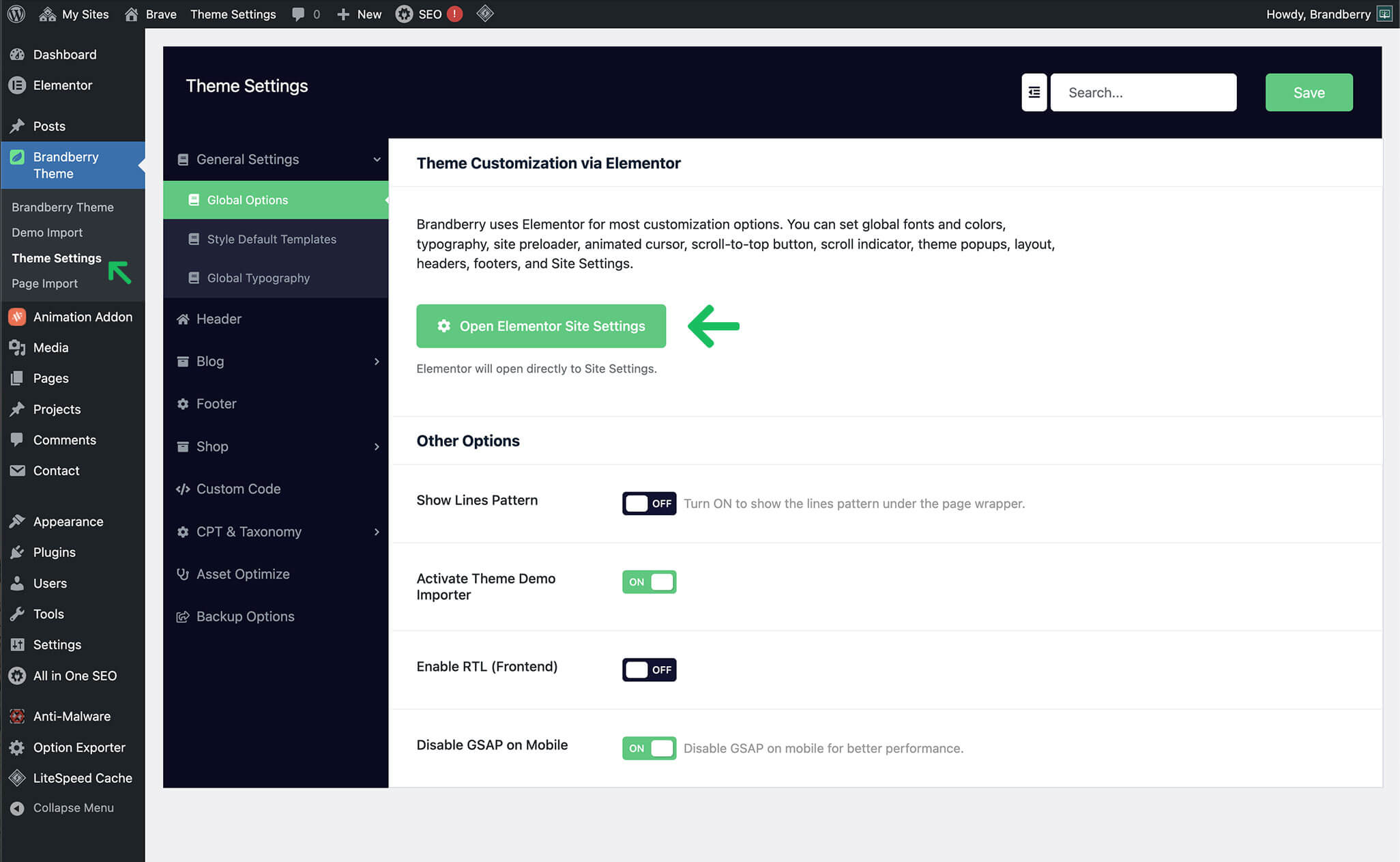
- Click the Open Elementor Site Settings button inside the Brandberry Theme Settings panel
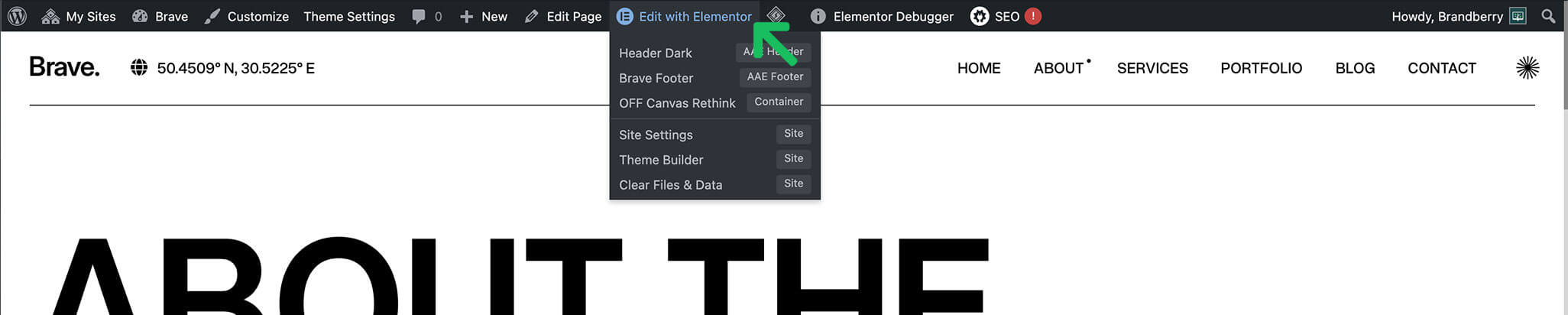
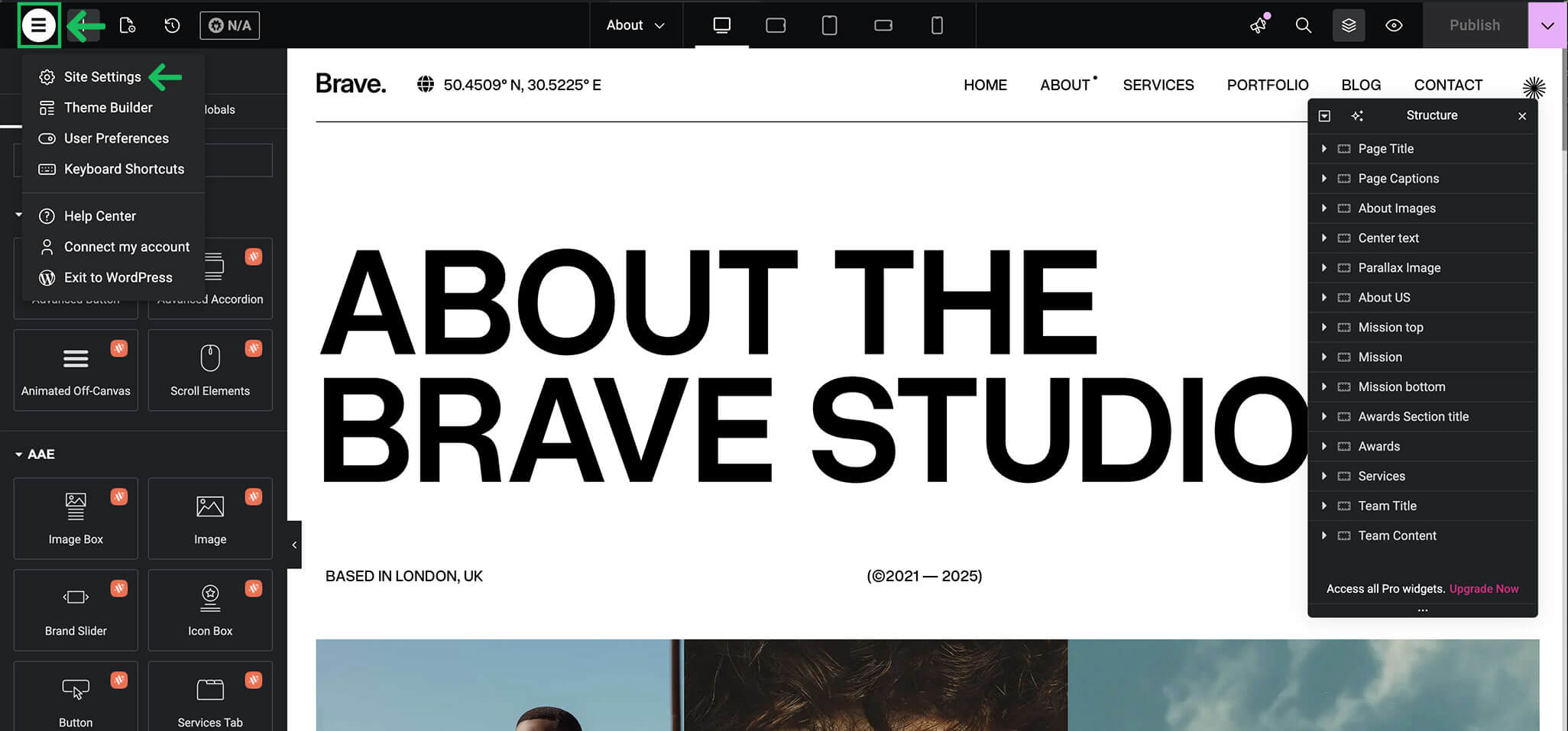
- Edit any page with Elementor, then click the Site Settings icon in the Elementor editor
All changes made here apply globally across your website.
Design System
The Design System section allows you to define global styles that are reused throughout the entire site.
- Global ColorsDefine your primary, secondary, text, and accent colors to keep a consistent color palette.
- Global Fonts: Set global font families that can be reused across headings, body text, and UI elements.
Theme Style
The Theme Style section controls the visual appearance of common elements. These settings ensure consistency across all pages.
- Typography: Control heading styles (H1–H6), body text, line height, and spacing.
- Buttons: Style default button colors, typography, borders, and hover states.
- Images: Apply global image styling such as borders, border radius, and filters.
- Form Fields: Customize the appearance of input fields, labels, and form elements.
Brandberry Addons (Animation Addons)
When the Animation Addons plugin is active, additional Brandberry-specific options become available inside Elementor Site Settings. These options extend Elementor with advanced interactive features.
- AAE Preloader: Enable and customize a site preloader that appears while the page loads.
- AAE Cursor: Activate a custom animated cursor and adjust its style and behavior.
- AAE Scroll to Top: Enable a scroll-to-top button and control its position and appearance.
- AAE Scroll Indicator: Display a scroll progress indicator to enhance user navigation.
- AAE Popup: Create and manage global popups such as announcements, promotions, or notifications.
These options are global and apply across the entire website.
Site Settings
The Settings section contains essential site-level configuration options:
- Site Identity: Manage your site title, and favicon.
- Background: Define global background colors or images for your site.
- Layout: Control overall layout width, content spacing, and structure.
Important Elementor Site Settings should be used for global styles and features. For individual page styling, edit the page directly using Elementor widgets and controls.
