Header Builder / Logo Setup
Estimated reading: 4 minutes
392 views
In Brandberry, headers are built visually using Elementor through the Theme Builder. This allows you to fully customize layout, spacing, colors, and responsive behavior without touching code.
Edit Brandberry Headers
You can access the Theme Builder in three ways:
- Go to Brandberry Theme → Theme Settings → Header
- Go to Animation Addons → Theme Builder → Header
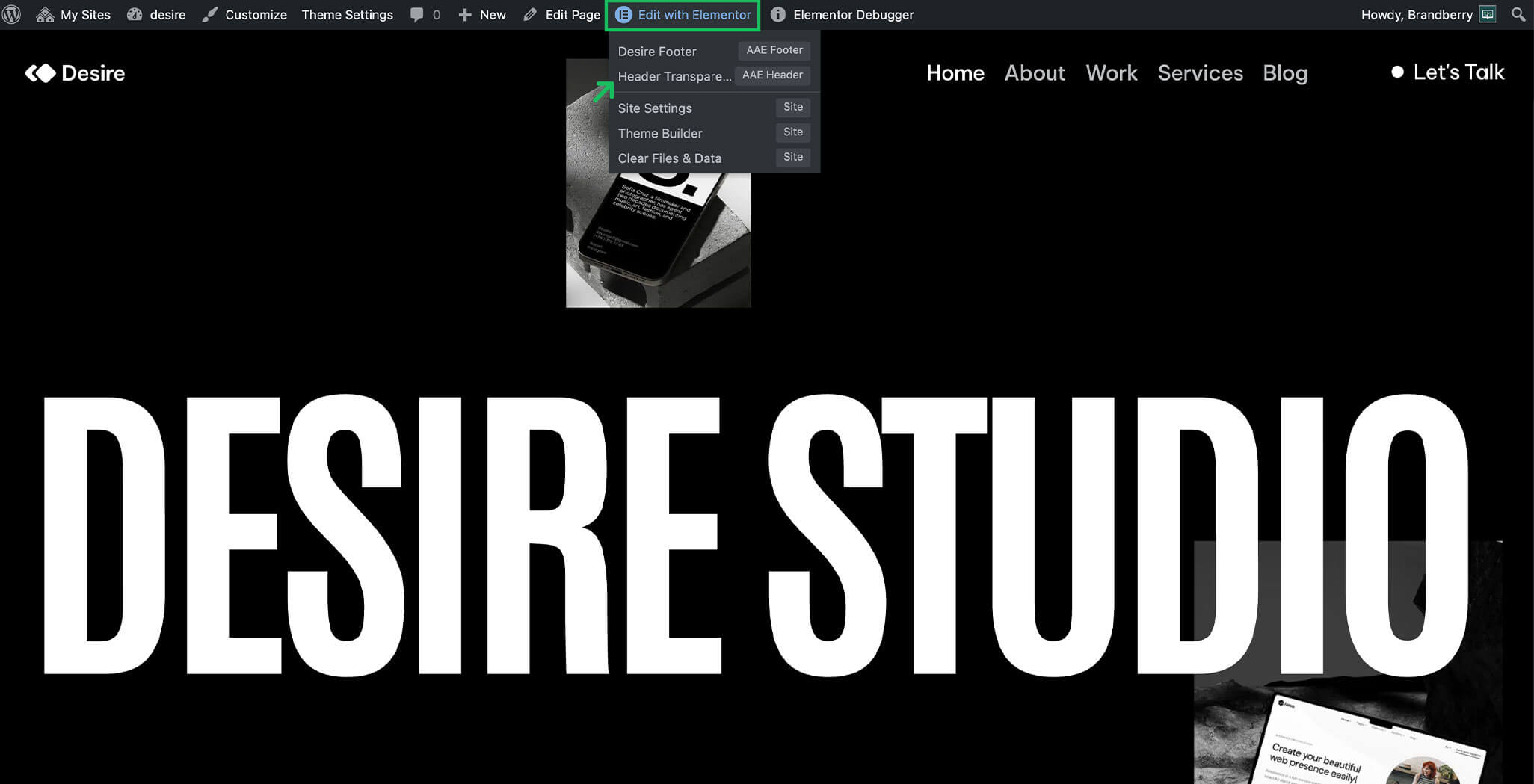
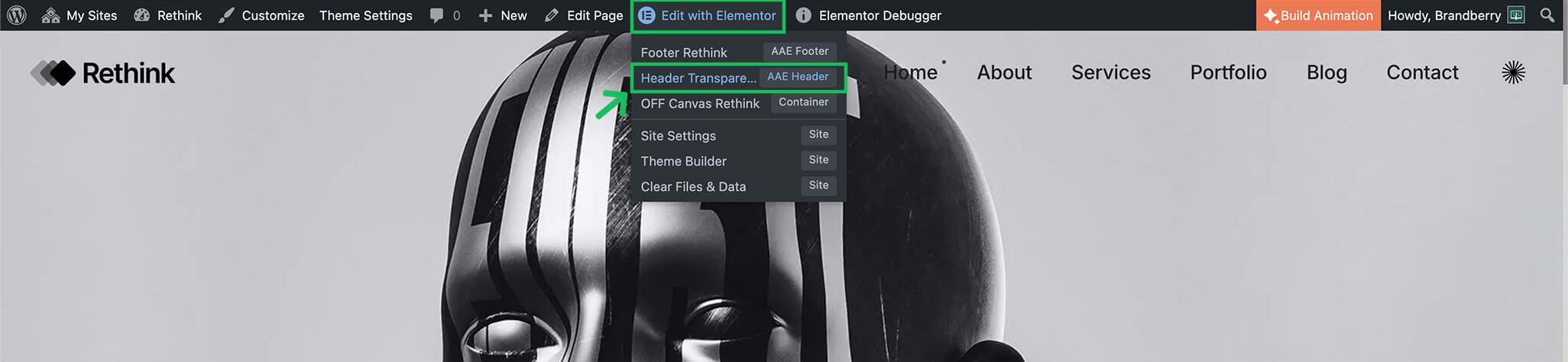
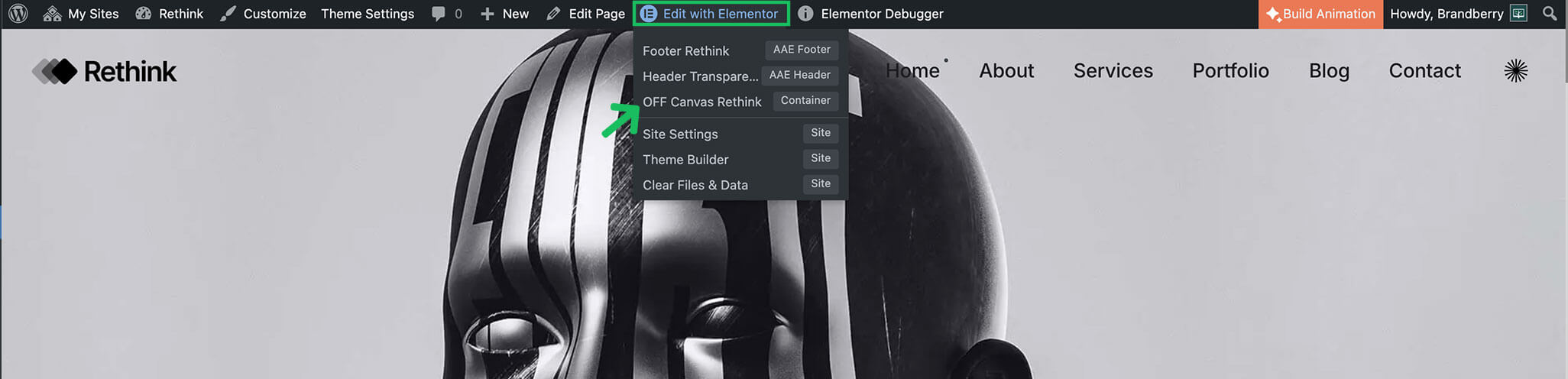
- Access the builder in the frontend page on Edit with Elementor → Edit Header/Footer
How to create a new Header
To create a custom header:
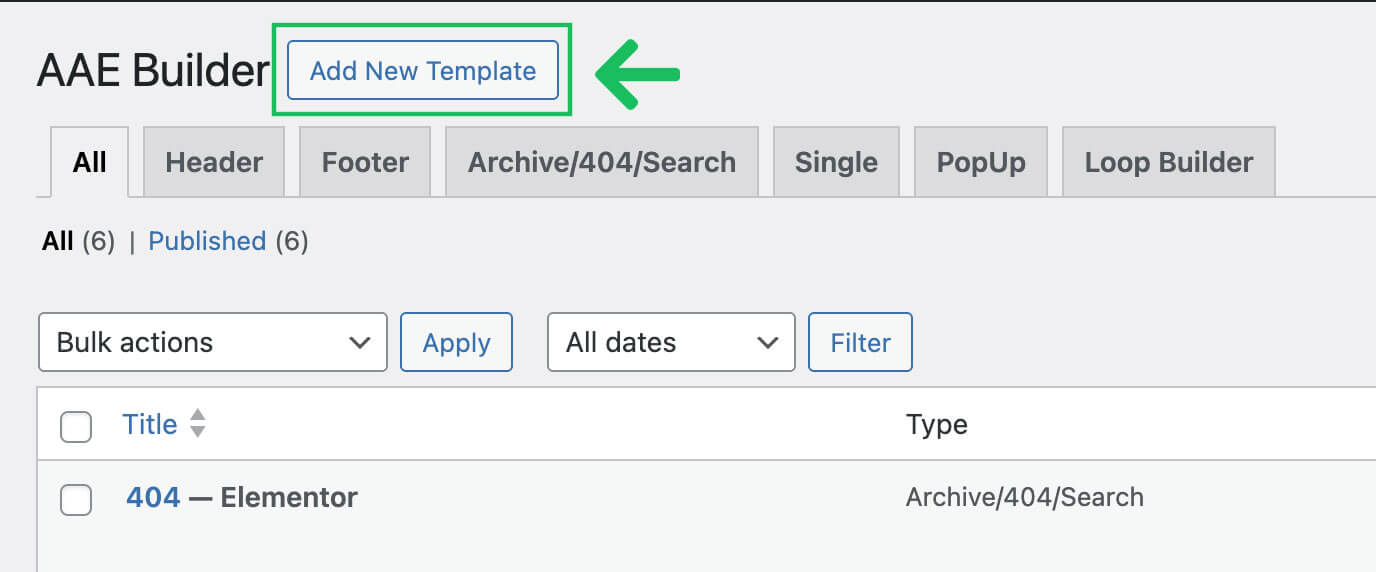
- Open the Theme Builder.
- Click Add New Template and choose Header.
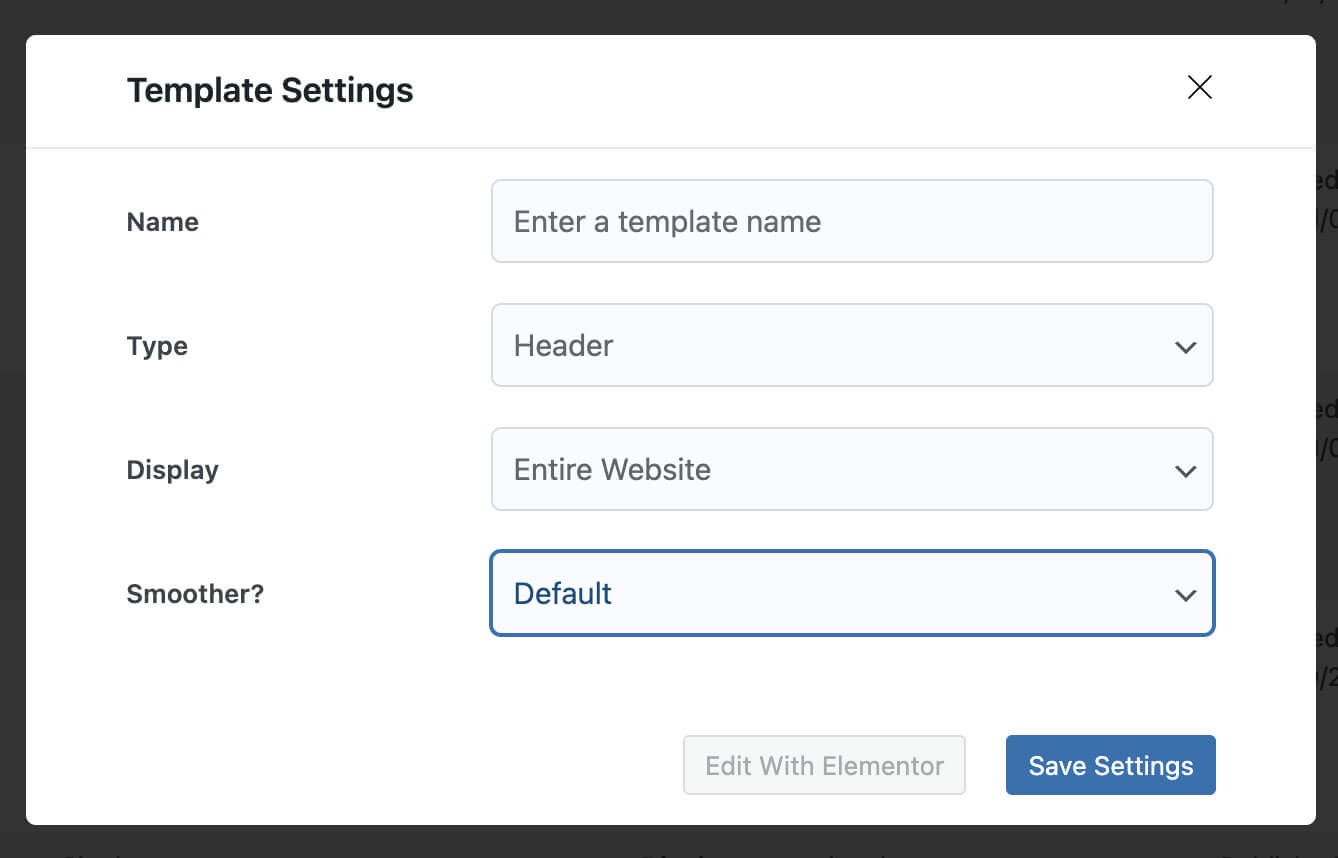
- Fill the options and conditions.
- Click Edit with Elementor.
- Design your header using Elementor widgets.
After creating a header template, you can control where it appears on your site. Display conditions allow you to:
- Use the header globally across the site
- Assign different headers to specific pages or post types
- Create custom headers for special layouts
Tip If you are new to the Theme Builder, start by editing the demo header. This helps you understand how the layout is structured and how widgets are used.
Logo Setup
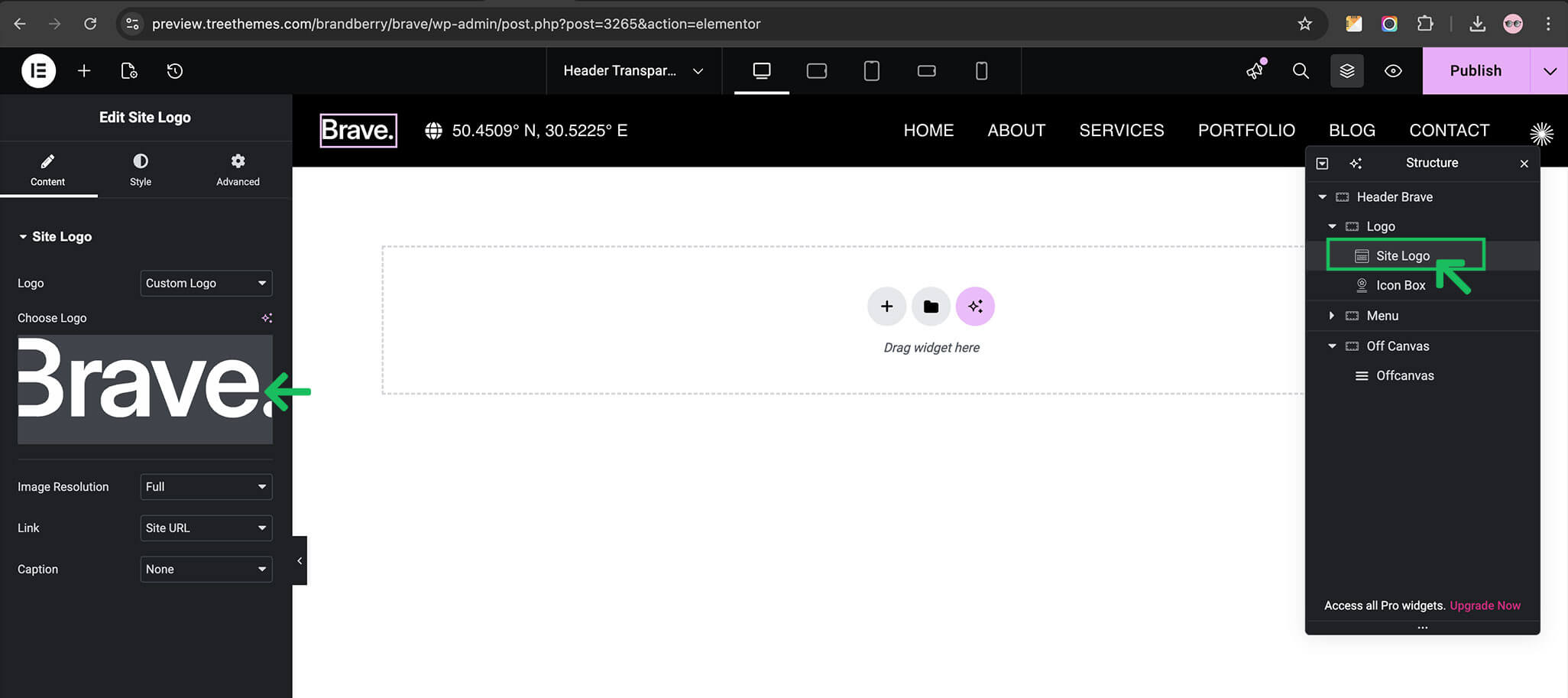
To display your website logo in the header, use the Site Logo widget inside the Elementor editor. The Site Logo widget allows you to:
- Upload or select your logo image
- Adjust logo size and alignment
- Link the logo to the homepage
Menu
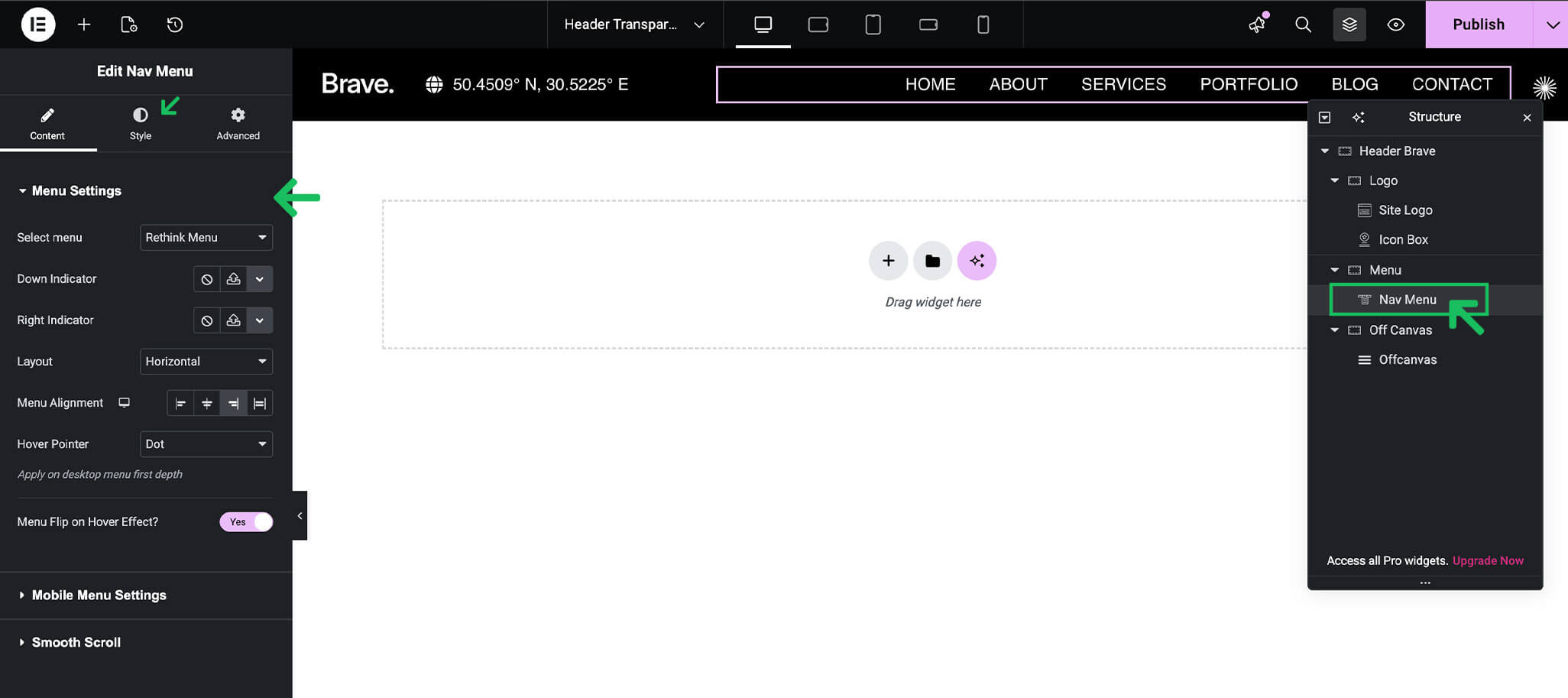
To display navigation menus in your header, use the Nav Menu widget.
The Nav Menu widget pulls menus created in Appearance → Menus and allows you to style them visually.
Using the Nav Menu widget, you can:
- Select an existing WordPress menu
- Control alignment and spacing
- Menu style for desktop & mobile
- Adjust typography and colors
- Configure mobile menu behavior
- Assigning Header Conditions
Mobile Menus in Elementor
In Brandberry, mobile menus are fully customizable using Elementor. This allows you to design a mobile navigation experience that fits your layout and branding, rather than relying on a fixed default menu.
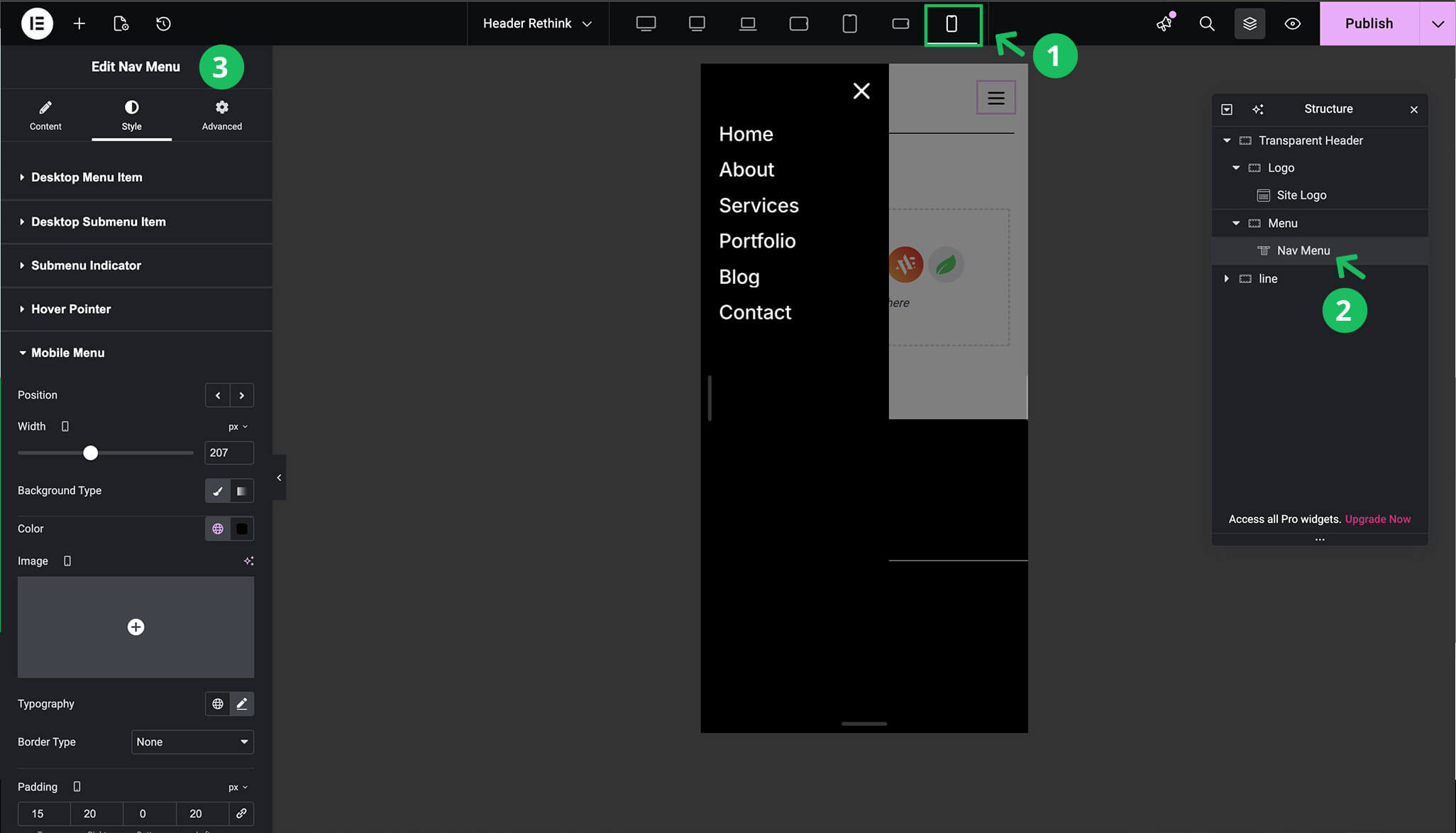
Accessing the Mobile Header. Mobile menus are part of the header template. To edit the mobile menu layout:
- Open any page on your website.
- Click Edit with Elementor from the WordPress admin bar.
- Click Edit Header.
Once inside the header template, switch to mobile view using Elementor’s responsive controls.
Using Responsive Controls. Elementor provides responsive editing options for desktop, tablet, and mobile devices. You can use these controls to customize how your header and menus appear on smaller screens.
With responsive settings, you can:
- Show or hide menu elements on mobile
- Adjust spacing, alignment, and font sizes
- Change layout structure specifically for mobile devices
Off-Canvas
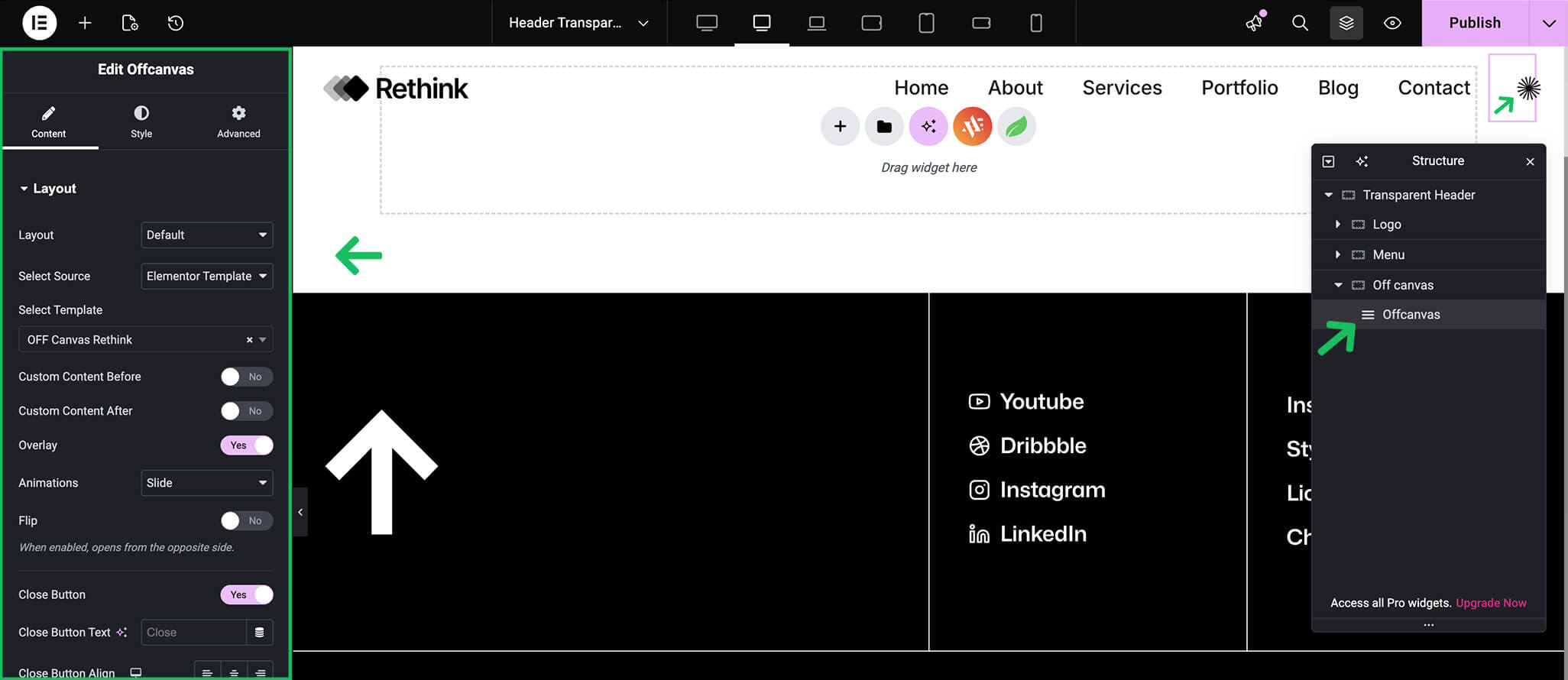
The Off-Canvas widget in Brandberry allows you to display hidden content panels that slide into view when triggered. Off-canvas panels are commonly used for mobile menus, side panels, filters, or additional content.
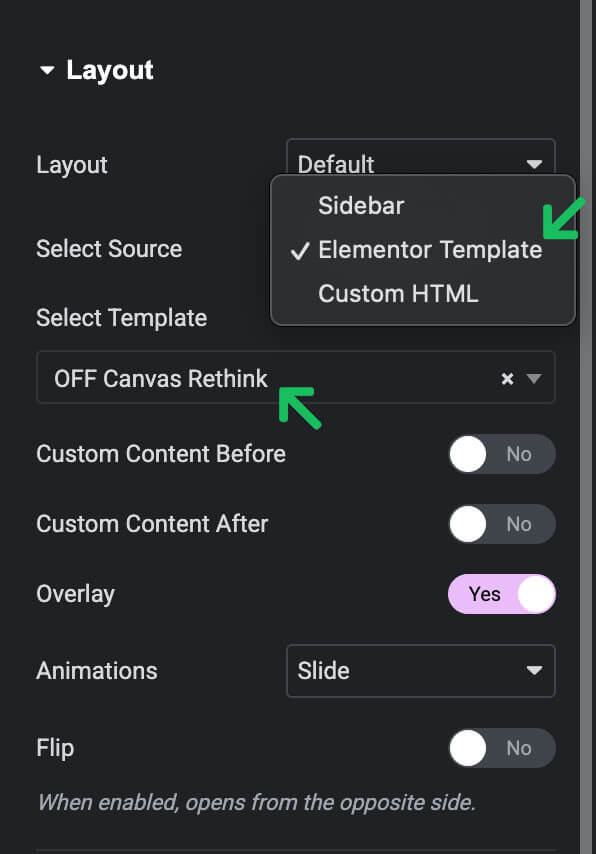
One of the key advantages of Brandberry’s Off-Canvas widget is the ability to load Elementor templates directly inside the panel. This gives you full design flexibility while keeping your layouts clean and lightweight. This allows you to:
- Reuse existing Elementor templates
- Design complex layouts visually
- Keep off-canvas content consistent across the site
- Update content in one place without editing multiple pages
Editing the Off-Canvas Trigger
The Off-Canvas trigger is the element users click to open the off-canvas panel (for example, a menu icon or button). In Brandberry, this trigger is usually placed inside the header layout.
To edit the off-canvas trigger:
- Open any page on your website.
- Click Edit with Elementor from the WordPress admin bar.
- Click Edit Header.
- Select the element that triggers the off-canvas panel.
- Adjust the trigger settings, icon, or styling as needed.
Changes made here affect how the off-canvas panel is opened and how the trigger appears in the header.
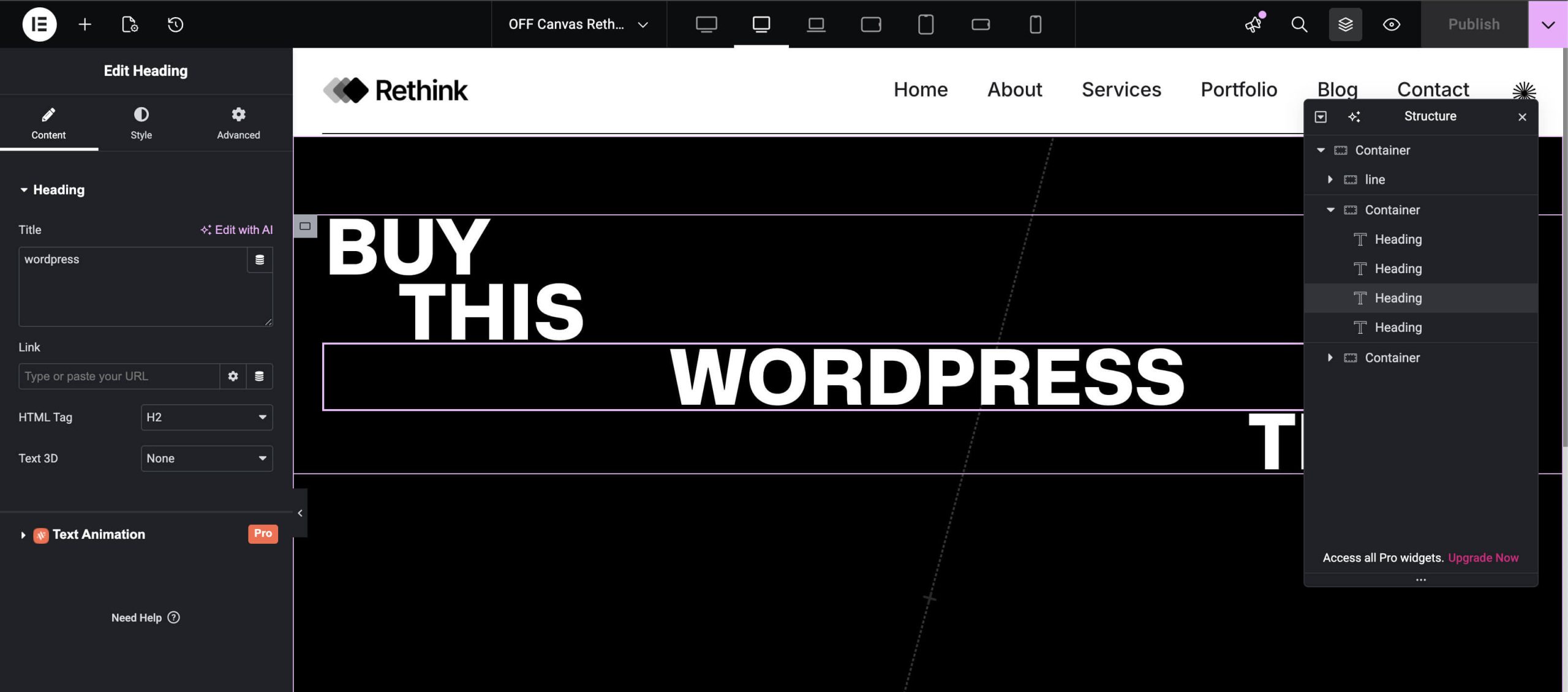
Editing the Off-Canvas Template
The content displayed inside the off-canvas panel is managed through a dedicated Off-Canvas template, built entirely with Elementor.
To edit the off-canvas template:
- Open any page on your website.
- Click Edit with Elementor.
- Click Edit Offcanvas.
This will open the assigned off-canvas template in the Elementor editor, allowing you to modify its layout, content, and styling.
Because the off-canvas template is built with Elementor, you can use any Elementor,Brandberry, or Animation Addons widget inside it.
Tip Since the off-canvas content is template-based, changes made here are applied globally wherever the off-canvas panel is used.
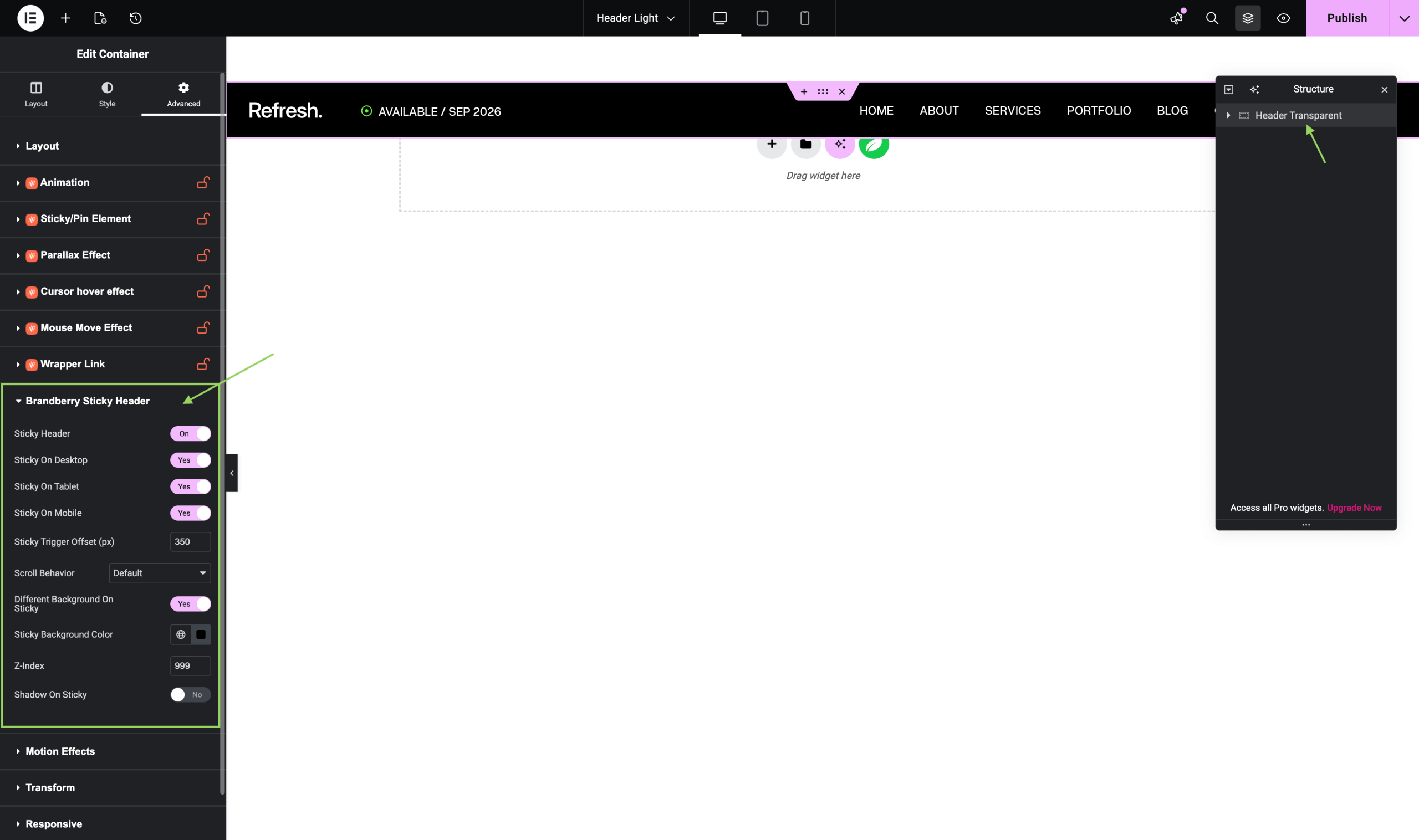
Sticky Header (NEW)
Version 1.1.2 introduces the ability to set a sticky header for your site.