
PopUp Builder
Estimated reading: 2 minutes
232 views
The Popup Theme Builder in Brandberry allows you to create reusable popup templates using Elementor. Popups can be used for announcements, promotions, contact forms, navigation panels, or any content you want to display on top of the current page.
Creating a Popup Template
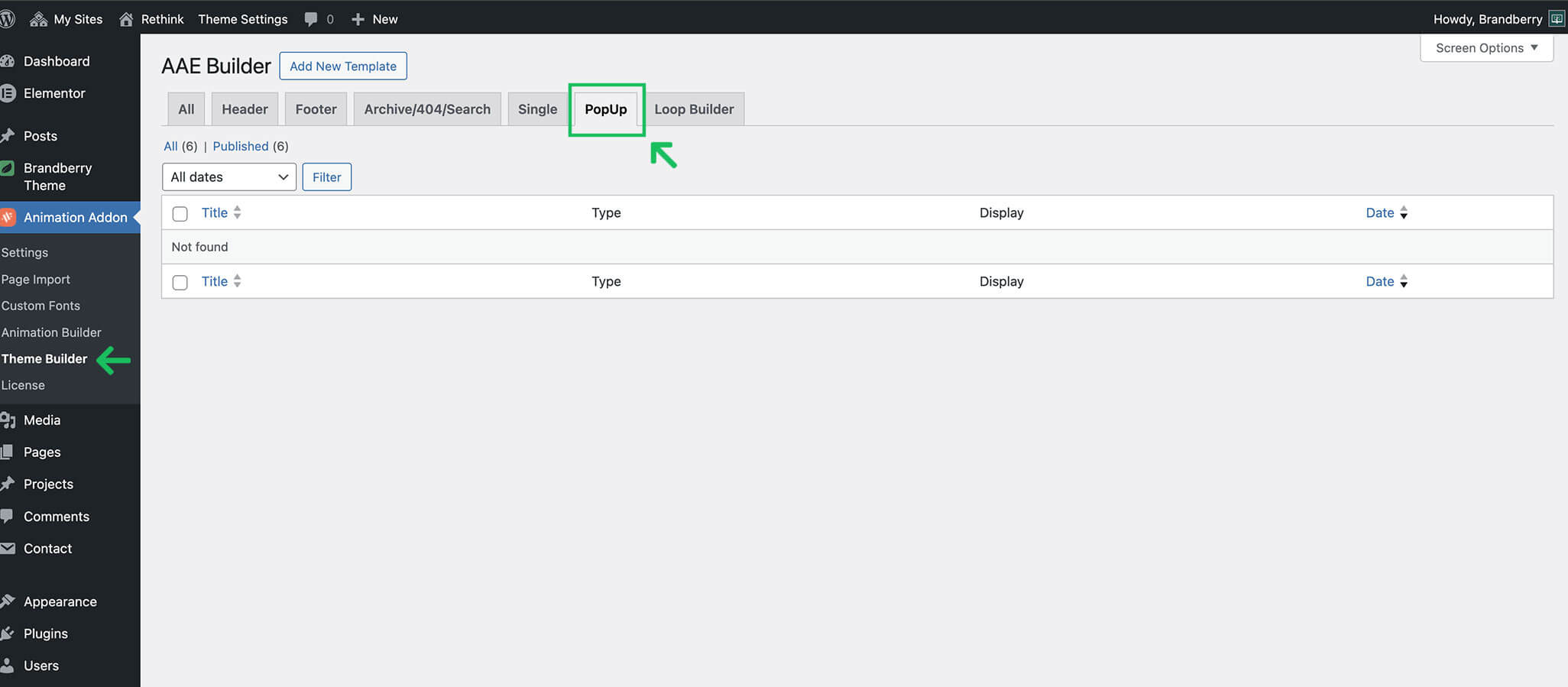
- Open the Theme Builder (Animation Addons → Theme Builder)
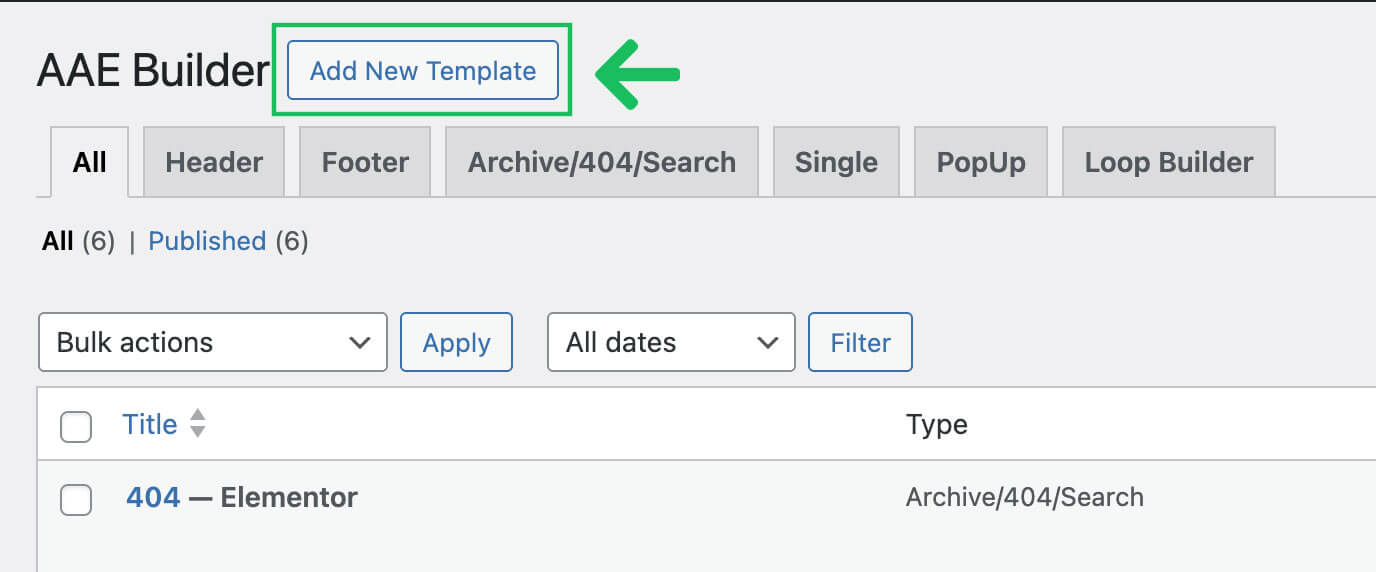
- Click Add New and choose PopUp as the template type.
- Configure the template settings (trigger, display rules, effects, etc.).
- Click Edit With Elementor to design the popup layout.
- Click Save Settings to apply your configuration.
Popup Template Settings
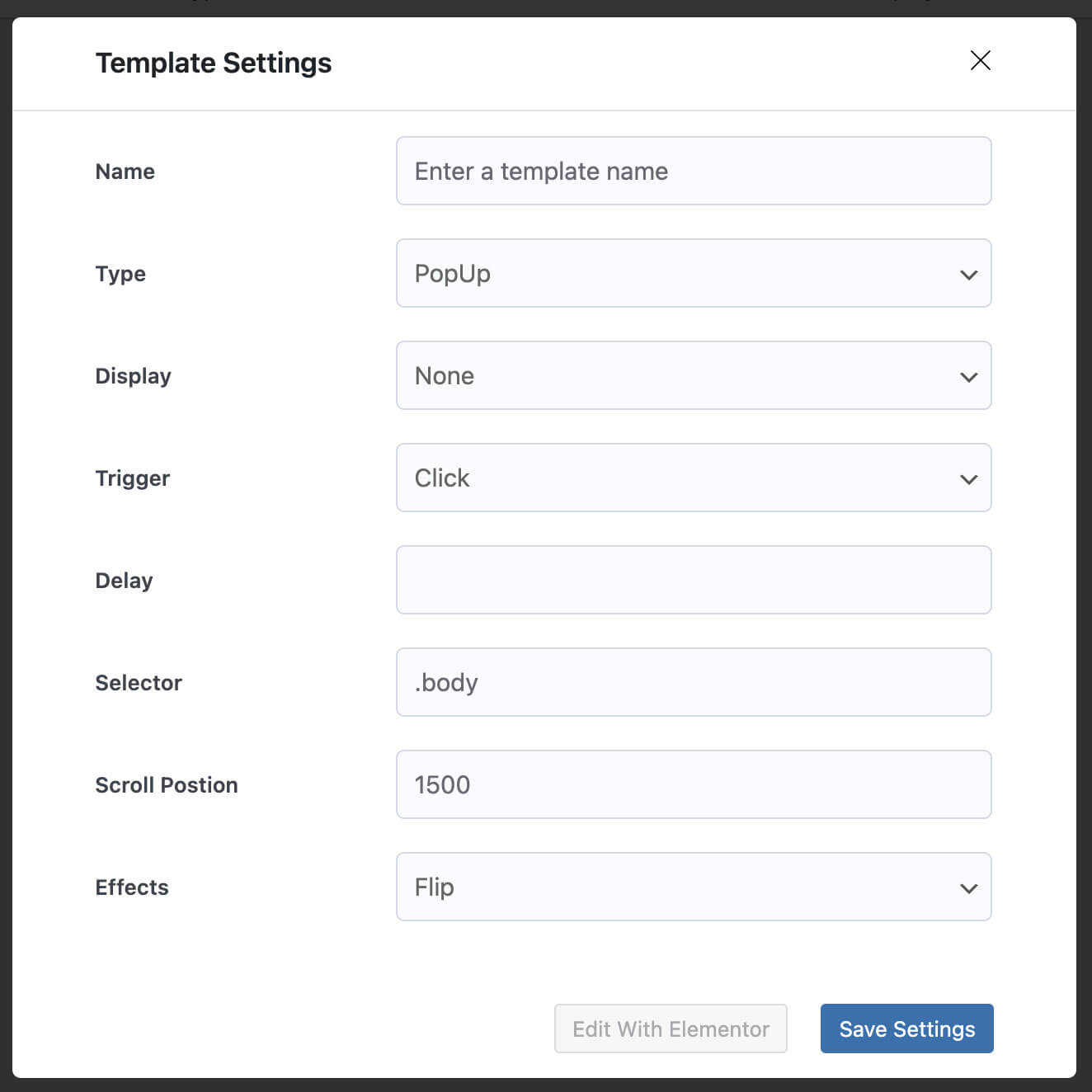
When creating or editing a popup, you will see a Template Settings panel. These settings control how and when your popup is displayed.
- Name
Enter a clear name to identify the popup template in your dashboard
(for example: Newsletter Popup, Promo Popup, Contact Popup). - Type
Select the template type. For popup templates, choose PopUp. - Display
Controls where the popup is allowed to appear. If set to None,
the popup will not display automatically and can be used only with manual triggers. - Trigger
Defines how the popup opens (for example: Click).
Choose the trigger method that fits your use case. - Delay
If supported by the selected trigger, this option delays the popup appearance
by the specified time (useful for showing popups a few seconds after page load). - Selector
Used for click-based triggers. Add the CSS selector of the element that should open the popup.
By default,.bodytargets the page body, but in most cases you will set this to
a specific button or link selector. - Scroll Position
Used for scroll-based triggers. The popup will appear after the visitor scrolls
to the specified position (for example:1500pixels). - Effects
Choose the popup animation effect (for example: Flip) to control
how the popup appears on screen.
Designing the Popup in Elementor
After saving the template settings, click Edit With Elementor to build the popup layout. You can use any Elementor, Brandberry, or Animation Addons widgets inside the popup template. Because popups are template-based, edits made to the popup layout are applied everywhere the popup is used.
Best Practices
- Keep popup content focused and easy to close
- Avoid showing too many popups on the same page
- Use lightweight layouts and limit heavy animations for better performance
- Test popup behavior on mobile devices
